Stamp Maker Online Free Without Watermark – Round, Rectangle, Company & Date Stamp Generator, Make from Image, Download PNG
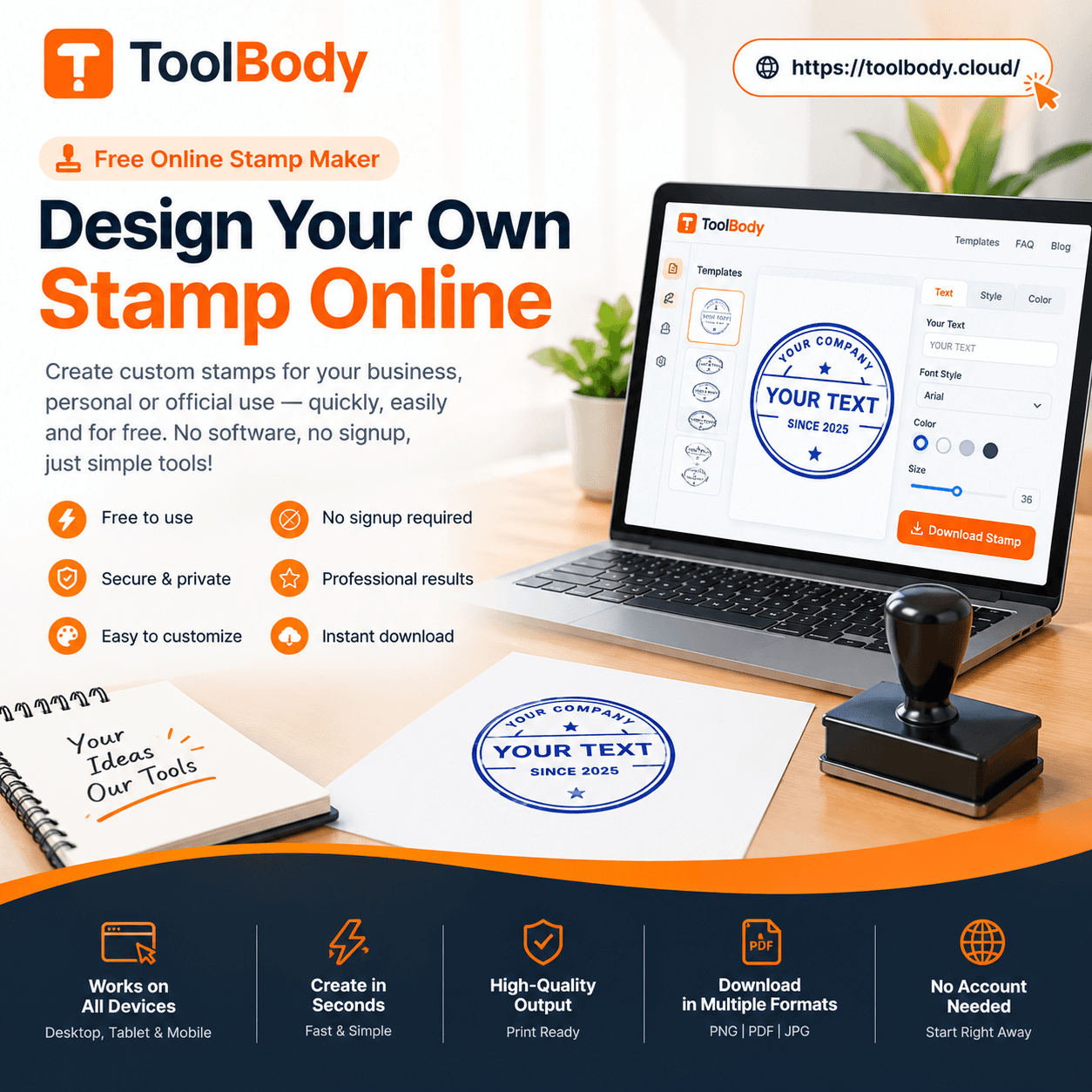
Stamp maker online free without watermark. Create round, rectangle, company and date stamps from text or image, customize it easily and download in PNG, SVG or PDF. No sign-up needed, 100% free.
Stamp Maker Online Free Without Watermark: Create Round, Rectangle and Company Stamps in Minutes
A stamp is still one of the quickest ways to make a document look official. Invoices, quotations, receipts, letters, certificates and approval forms all look more complete with a clear stamp on them. The old way meant visiting a shop, paying a fee and waiting. Today a stamp maker online free without watermark lets you design one in your browser and download it in a few minutes.
This guide explains what such a tool does, why a clean, watermark-free result matters, which stamp styles you can make, and how to get a professional-looking stamp with no design skills.
What Is an Online Stamp Maker?
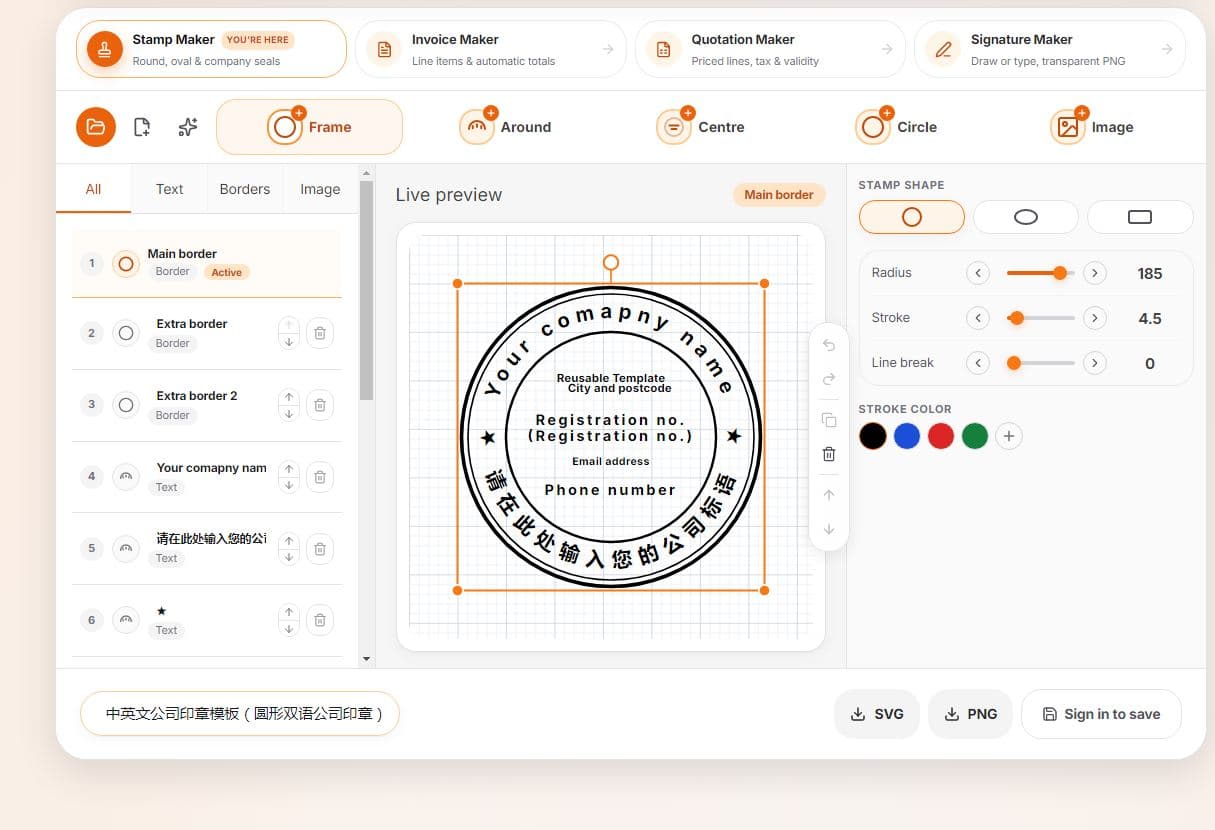
An online stamp maker is a web tool where you type your text, pick a shape and a color, and see a stamp take form on screen. You don’t install software or open an account. You change the text, border, font and color until the stamp looks right, then download it as an image.
The result is a digital stamp. You can place it on a PDF, a Word file, an invoice or a scanned page. You can also print it and use it on paper documents. Because everything happens in the browser, it works on a phone, tablet or laptop.
Why “Without Watermark” Matters
Many free tools let you design a stamp but then stamp their own logo or website name across your download. That makes the file useless for real business use. A customer who receives an invoice with another website’s name printed on your company stamp will question how professional you are.
A watermark-free stamp gives you:
A clean, professional look. Only your company name, city, date or approval text appears.
Files you can use right away. You don’t need to crop, edit or pay to remove a mark.
Consistent branding. The same clean stamp can go on every document you send.
Peace of mind. No surprise logos, no upgrade prompts at the last step.
When you compare tools, always check the downloaded file, not just the preview. A tool that is truly free and watermark-free should give you the same quality you saw while designing.
Types of Stamps You Can Create
Different documents need different stamps. A good stamp maker covers the most common styles.
Round Stamp
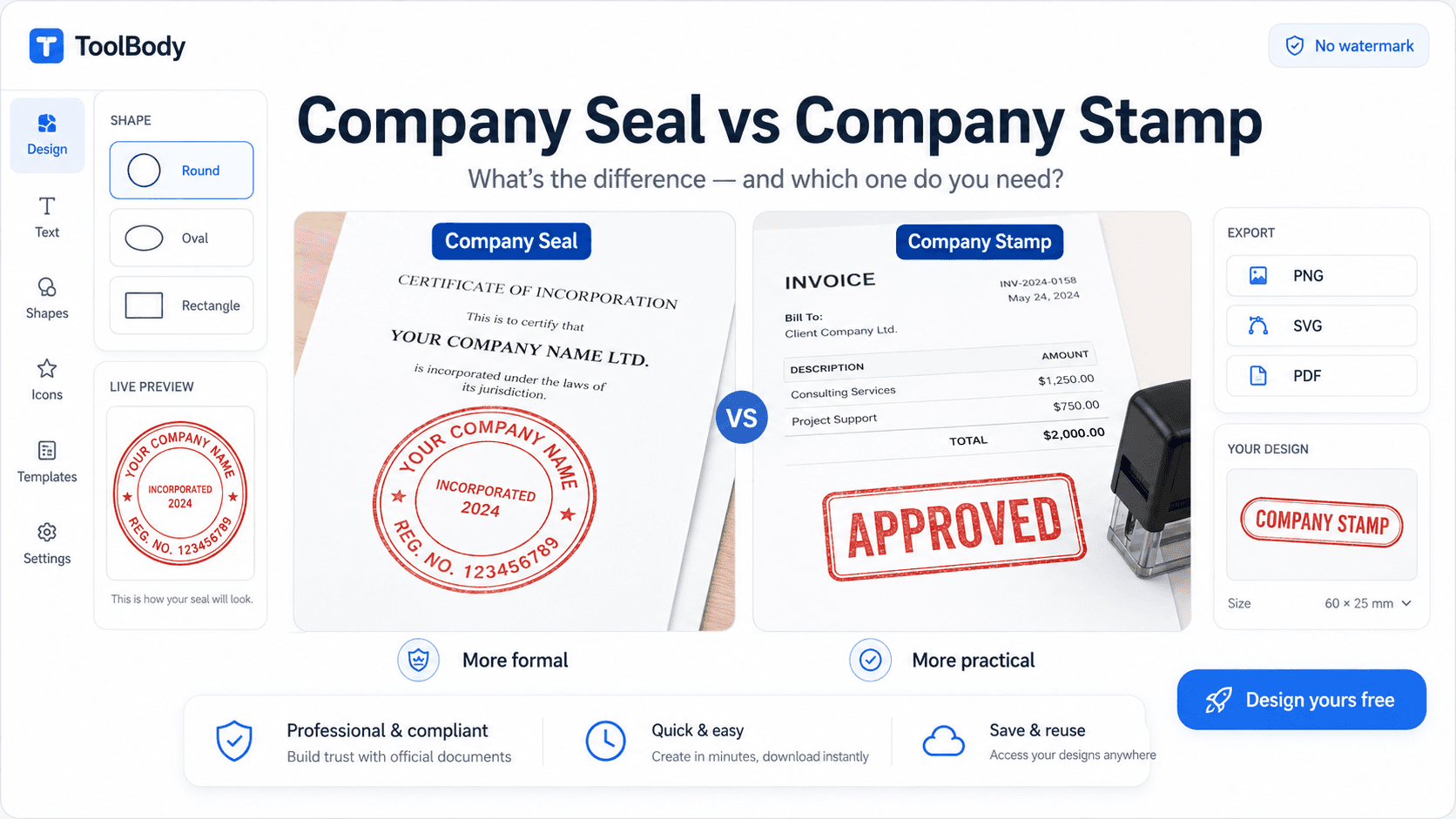
The round stamp is the classic choice for companies and offices. Text usually runs along the circular border, with a short line, a symbol or a registration detail in the center. Businesses use it on letterheads, agreements and certificates. A round stamp maker online free lets you set the outer text, inner text, border thickness and color so it matches how your business looks.
Rectangle Stamp
A rectangle stamp suits documents that need a few lines of information, such as a name, designation, address or phone number. Shop owners, freelancers and professionals often use it on bills and receipts. Rectangle stamps are easy to read because the lines are straight, which makes them a practical choice for invoices and delivery notes.
Company Stamp
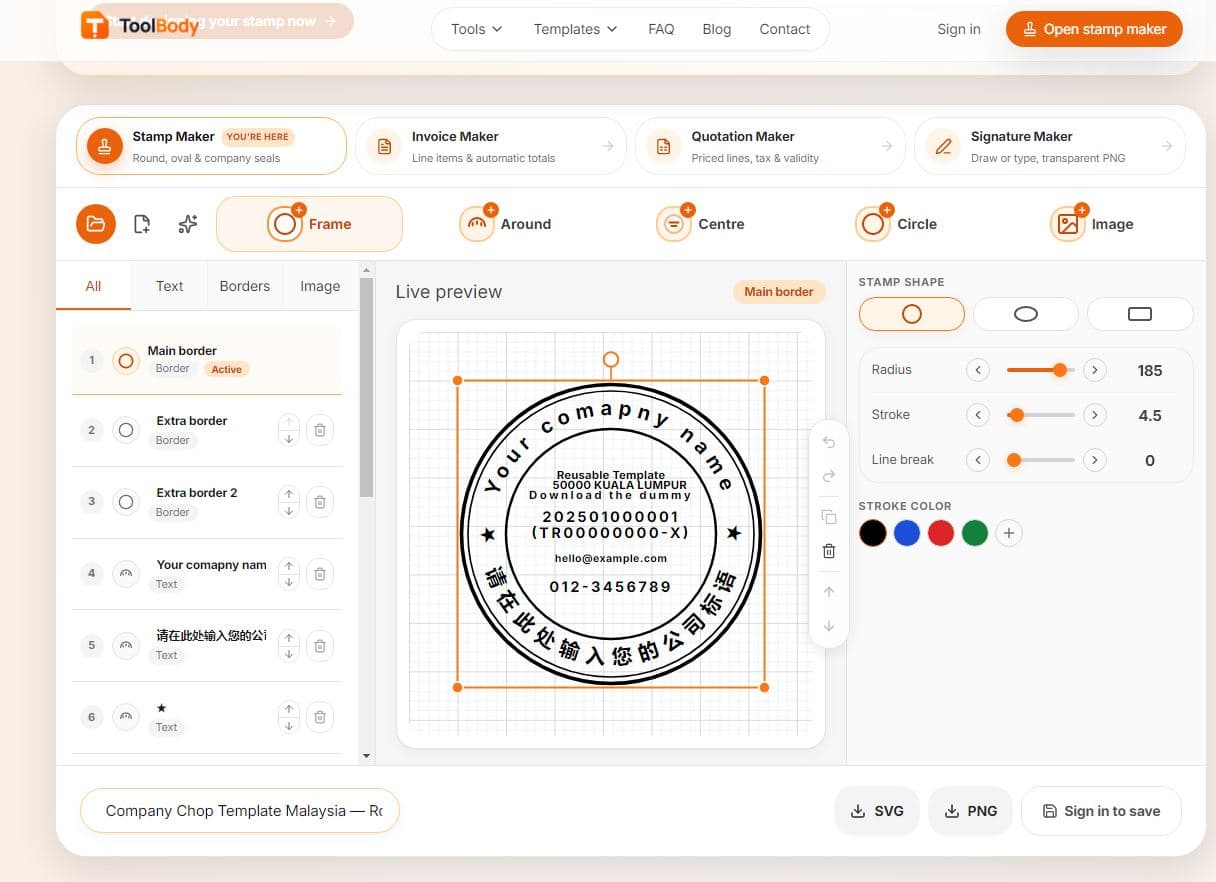
A company stamp is the official mark of a business. It normally carries the company name, the city or country, and sometimes a registration or tax detail. A company stamp generator helps you build one that looks formal and tidy. Keep the text short and well spaced so it stays readable even at a small size.
Date Stamp
A date stamp shows when something was received, paid, approved or dispatched. Offices use it constantly on incoming mail, payment slips and filed records. With a free online date stamp generator, you can set the date and a label such as “Received”, “Paid” or “Approved” and download it immediately.
Approval and Status Stamps
Short stamps such as “Approved”, “Paid”, “Verified”, “Confidential” or “Draft” are useful in everyday office work. They tell the reader the status of a document at a glance. These work well in red or blue, since both colors stand out on a white page.
Make a Stamp from an Image
Sometimes you already have a logo, a signature or a scanned stamp and want to turn it into a clean, reusable file. The “from image” approach lets you upload a picture and build the stamp around it, for example by adding a logo to the center of a round stamp.
For the best result, use an image with a plain background and good resolution. A sharp logo gives a sharp stamp. If your image is blurry, the stamp will look blurry too, no matter how good the tool is. Once your logo sits well inside the design, you can add text around it and download the finished stamp.
How to Make a Stamp Online: Step by Step
You can finish the whole process in a few minutes.
Choose the shape. Pick round, rectangle or any other style that fits your document.
Enter your text. Type your company name, city, date or approval wording. Keep it short and clear.
Customize the look. Adjust the font, text size, border thickness and color. Blue and red are the most common stamp colors.
Add a logo or image (optional). Upload a simple logo if you want it in the center or beside the text.
Check the preview. Zoom in and make sure every letter is clear and nothing is cut off.
Download. Save it as a PNG for a transparent background, or as PDF or SVG if you need those formats.
There is no sign-up and no payment, and your file comes out without any watermark.
Tips for a Professional-Looking Stamp
A stamp is small, so details matter. These habits make a clear difference:
Keep the text short. Too many words make the stamp crowded and hard to read when printed.
Pick a readable font. Bold, clean fonts hold up better than fancy ones when the stamp is shrunk.
Use strong contrast. Dark blue or deep red on a white page looks authentic and prints well.
Leave breathing space. Don’t push text against the border. A little margin keeps the design balanced.
Match your brand. If your company uses a specific color or logo, repeat it in the stamp.
Test before you commit. Print a sample or place it on a document to see how it looks at real size.
Where You Can Use Your Digital Stamp
Once you have the file, you can use it in many places:
Invoices and quotations, to give them a finished, official feel.
Receipts and payment slips, with a “Paid” or date stamp.
Letters and agreements, to mark them as issued by your business.
Certificates and forms, to add an approval or verification mark.
PDF files, by placing the PNG on top of the page in any PDF editor.
Word documents, by inserting the image and resizing it where you need it.
Small businesses, freelancers, students, teachers and office staff all find this useful because it removes the cost and delay of ordering a physical stamp.
Why PNG Is the Best Format
PNG is the most useful download format for stamps because it supports a transparent background. That means the stamp sits cleanly on top of your document without a white box around it. Text underneath stays visible and the stamp looks as if it were pressed onto the page.
SVG is a good second option when you need a stamp that can be enlarged without losing quality, for example on banners or large print. PDF is handy when you want to share or print the stamp as a standalone page. Having all three options means you can choose what suits each job.
A Note on Using Stamps Responsibly
A digital stamp is a convenience for presentation and branding. For legal papers, government forms or situations where an officially registered stamp is required, you should follow the rules that apply in your country or organization. For everyday business documents, invoices, internal approvals and general paperwork, a custom digital stamp works very well.
FAQs
Yes. You can design and download your stamp at no cost. There are no hidden charges, no premium-only download and no logo or website name added on top of your stamp.
No. You don’t need an account, email address or password. Open the page, enter your text, customize the design and download your stamp straight away.
Yes. You can create a round stamp for company use, a rectangle stamp for bills and receipts, and other common styles. You can change the text, font, size, border and color for each one.
Yes. Type your company name, city or country and any short detail you want to show, then adjust the layout until it looks neat. Keep the text short so the stamp stays clear when printed.
Choose the date stamp option, set the date and add a label such as Received, Paid or Approved. Check the preview and download it as a PNG, ready to place on your document.
Yes. You can upload a logo or image and place it inside your stamp, for example in the center of a round design. A clear image with a plain background and good resolution gives the best result.
PNG is best for everyday use because it keeps a transparent background, so the stamp sits cleanly on invoices and PDFs. SVG is useful when you need to enlarge the stamp without losing quality. PDF is handy for sharing or printing the stamp as a separate page.
When you download the stamp as a PNG, the background stays transparent. This lets you place it on top of any document without a white box around it.
Yes. You can insert the downloaded image into an invoice, quotation, receipt, PDF or Word file and resize it wherever you need it. You can also print it for paper documents.
A digital stamp works well for everyday business documents, invoices, internal approvals and general paperwork. For legal papers, government forms or cases where an officially registered stamp is required, you should follow the rules of your country or organization.