
A signature that doesn't bring a white box with it
Here's the small annoying detail nobody warned you about: most "free" signature generators give you a PNG, you drop it on your document, and a white rectangle appears around the signature. It looks bad. Especially on coloured letterheads, styled PDFs, or anything that isn't plain white paper.
The fix is a truly transparent PNG — and that's what the ToolBody transparent signature PNG maker outputs by default. Drop your signature onto any document, of any colour, and only the signature shows. No box. No fringe. No "remove background — premium feature" upsell.
↑ Make your signature now (no sign-up)
Two ways to make a signature
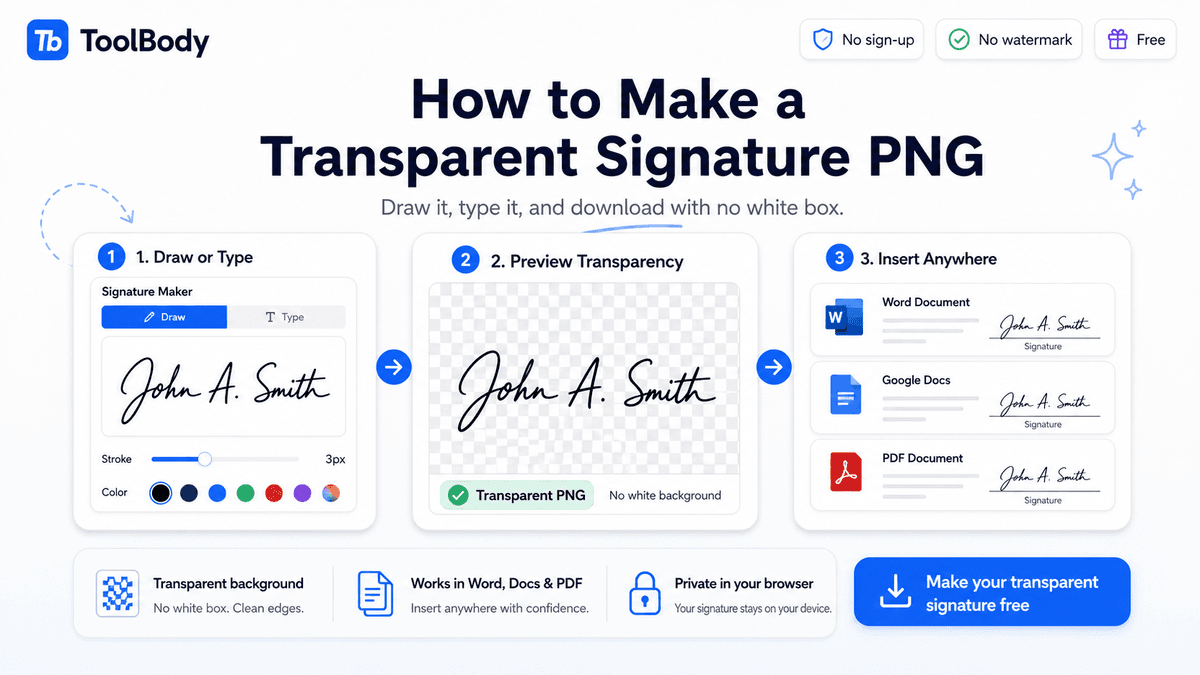
Use your mouse, trackpad, or touchscreen. The draw signature online free mode captures your actual handwriting — your real loops, your real slant, your real pressure variations. Most signatures look most authentic this way, especially on a phone or tablet where you can use your finger.
A few small things the editor lets you adjust as you draw:
Stroke weight — fine, medium, or bold. Match the look of a pen vs a marker.
Ink colour — black for formal documents, blue for the "this is a real signature, not a photocopy" tradition, any colour for personal use.
Re-draw any time — if a line goes wrong, hit clear and start again. It's just a browser; nothing is final until you download.
Type it
Don't have a steady hand? Or just want something faster and more consistent across documents? The type signature online mode is for you. Enter your name and pick from a set of handwriting-style fonts — cursive, italic, formal, casual. The signature is generated in real time.
This is also what most people quietly use for email-attachment work — typed signatures look cleaner and more consistent than mouse-drawn ones, especially when you're signing several documents a week. The handwritten signature generator layouts cover most styles people actually want.
Both modes export to the same place
Whichever you pick, you end up with a transparent PNG. No upsell to unlock the other mode. No "drawn signatures are premium". One tool, two methods, one output.
Why transparent PNG matters (the technical reason)
Most people don't think about file formats until something looks wrong. Then they care a lot. So in plain language, here's why the create transparent signature png detail is the whole point of this tool:
A regular PNG has a background. Usually white. When you drop it on a document, you're not just placing the signature — you're placing the signature and the white rectangle behind it. On a white page you can't tell. On any other background, the rectangle becomes painfully obvious.
A transparent PNG has no background — only the signature itself. The "white" pixels around your signature literally don't exist in the file. So when you put it on a yellow letterhead, a blue contract template, or a styled PDF, the signature blends in seamlessly. It looks like you signed the document, not like you stuck a sticker on it.
ToolBody's signature export is transparent by default. There's no checkbox to remember, no "premium" toggle to unlock, no PNG-export-with-transparency upsell.
How it works — three steps
Step 1 — Pick draw or type
The editor opens with both options. Choose one. You can switch between them any time — switching doesn't lose your work for the other mode, so you can experiment.
Step 2 — Customise it
Draw mode: sketch your signature, adjust stroke weight and colour, clear and redo as many times as you need. Type mode: enter your name, scroll through handwriting fonts until you find one that fits, adjust size and colour.
The live preview updates as you go.
Step 3 — Download as transparent PNG
One click. The PNG saves to your device with a fully transparent background. Drop it into a Word document, a Google Docs file, a PDF, or an email. Done.
No "confirm your email" screen. No "create an account to download". No watermark in the corner.
How to insert your signature into different documents
A signature file is only useful when it's actually on the document. Here's the quick version for the four most common cases.
Microsoft Word
Click where you want the signature.
Insert → Pictures → This Device, select your PNG.
Right-click the image, choose Wrap Text → In Front of Text.
Drag the signature to position on the signature line. Resize from the corners.
Because the background is transparent, the signature sits cleanly on any line, table, or printed text underneath.
PDF documents
The exact menu names depend on which PDF tool you use, but the workflow is always the same:
Adobe Acrobat: Tools → Edit PDF → Add Image → choose your PNG → drag to position.
Foxit Reader / PDF24 / browser-based PDF tools: look for "Insert Image", "Add Image", or "Stamp" — pick your PNG and place it.
Preview (Mac): Tools → Annotate → Signature is its own built-in flow; or for image insertion, Markup → Add Image.
Email signature
You can drop a transparent PNG signature into your email client's signature settings, but a quick honest note: most email clients flatten or compress images in their signature blocks, and HTML email signatures are usually built differently (typed name in a styled font). For email footers specifically, a dedicated email-signature generator is usually a better fit than an image. ToolBody is built for document signatures, not email-footer HTML.
Who actually uses this tool
Anyone signing PDFs from home
Contracts, agreements, school forms, hospital intake documents — anything that arrives as a PDF and needs your signature. Make the signature once, save it, reuse it forever.
Freelancers and consultants signing client documents
Statement-of-work agreements, NDAs, project briefs. Your signature on a draft tells the client "yes, this is my final version". Drawing it once with a transparent background means every document you send going forward looks signed and final.
Small business owners signing invoices and quotes
Tying back to the Invoice Maker: a signed invoice reads as more professional than an unsigned one in most parts of the world. Save your signature here once, upload it into the Invoice Maker, and every invoice you make from then on goes out signed.
Anyone who needs a clean signature image — once
Photographing your handwritten signature gives you a file with poor contrast, weird lighting, and a non-transparent background. Drawing it directly here gives you a usable file in 30 seconds, with the background already transparent.
Students and remote workers signing forms
University forms, employment paperwork, rental applications, expense forms. The kind of low-stakes routine signing that doesn't need a full e-signature platform but still needs to look like a real signature on a PDF.
What this tool is — and what it isn't
A specific and honest distinction, because it matters more for signatures than for stamps or invoices.
*This tool makes signature images.* PNG files. Pixels. Visuals.
This tool does not make:
Cryptographic digital signatures (the kind backed by certificates, used for code signing and high-stakes legal documents)
Certified e-signatures with audit trails (the DocuSign / Adobe Sign category — those records who signed, when, from where, with verification)
Legally binding electronic signatures in jurisdictions that require specific authentication methods
Email signature HTML (the styled block at the bottom of business emails — that's a different product category entirely)
When is an image signature enough? Honestly: most everyday paperwork. School forms, internal documents, casual agreements, invoices, quotes, statements, photo-copy-style record-keeping, anything where both parties just want to see a signature on the page and a hard authentication isn't required.
When do you need a real e-signature platform instead? High-stakes legal contracts where the authenticity of who signed needs to be provable later — property contracts, major commercial agreements, anything a court might litigate. For those, use a regulated e-signature service.
This isn't legal advice. The rules differ country to country. If you're unsure whether an image signature is enough for a specific document, ask a lawyer in your jurisdiction.
Why the ToolBody Signature Maker is different
Honestly, comparison-wise:
Truly transparent by default. Some "free" signature tools give you a PNG with a white background and charge for the transparent version. Ours is transparent on the first download.
No daily caps. Some free signature tools quietly cap you at 10 exports per day. We have no cap.
No sign-up. No email, no password, no confirmation.
No watermark. The file you download is your signature only — no ToolBody branding.
Both draw and type in one tool. Some free tools split these into two products, two interfaces, or "type free / draw premium". One tool, both modes, no friction.
Stays on your device. Your signature is generated in the browser. It's not uploaded to a server. Closing the tab clears everything.
Works hand-in-hand with the other ToolBody tools
The Signature Maker is part of a small set of tools that fit together:
Make your signature here.
Make a company stamp in the Stamp Maker.
Use both on a professional invoice in the Invoice Maker — there are dedicated fields for both, so the final PDF goes out signed and stamped.
End-to-end signed-and-stamped document workflow, three free tools, zero accounts.
Why ToolBody exists (the short version)
A signature image is something most people need maybe four times a year. There's no good reason for that to mean opening a SaaS account, accepting a 14-day trial, or paying $9 to remove a watermark.
ToolBody is built around the opposite philosophy: small, focused, browser-based tools that do exactly one job, and stop. No accounts, no upsells, no surveillance. Make your signature once, use it forever, never come back if you don't need to.
More tools coming. The model doesn't change.