Free Online Stamp Maker & Download – Round, Rectangle, Date & Doctor Stamps for PDF
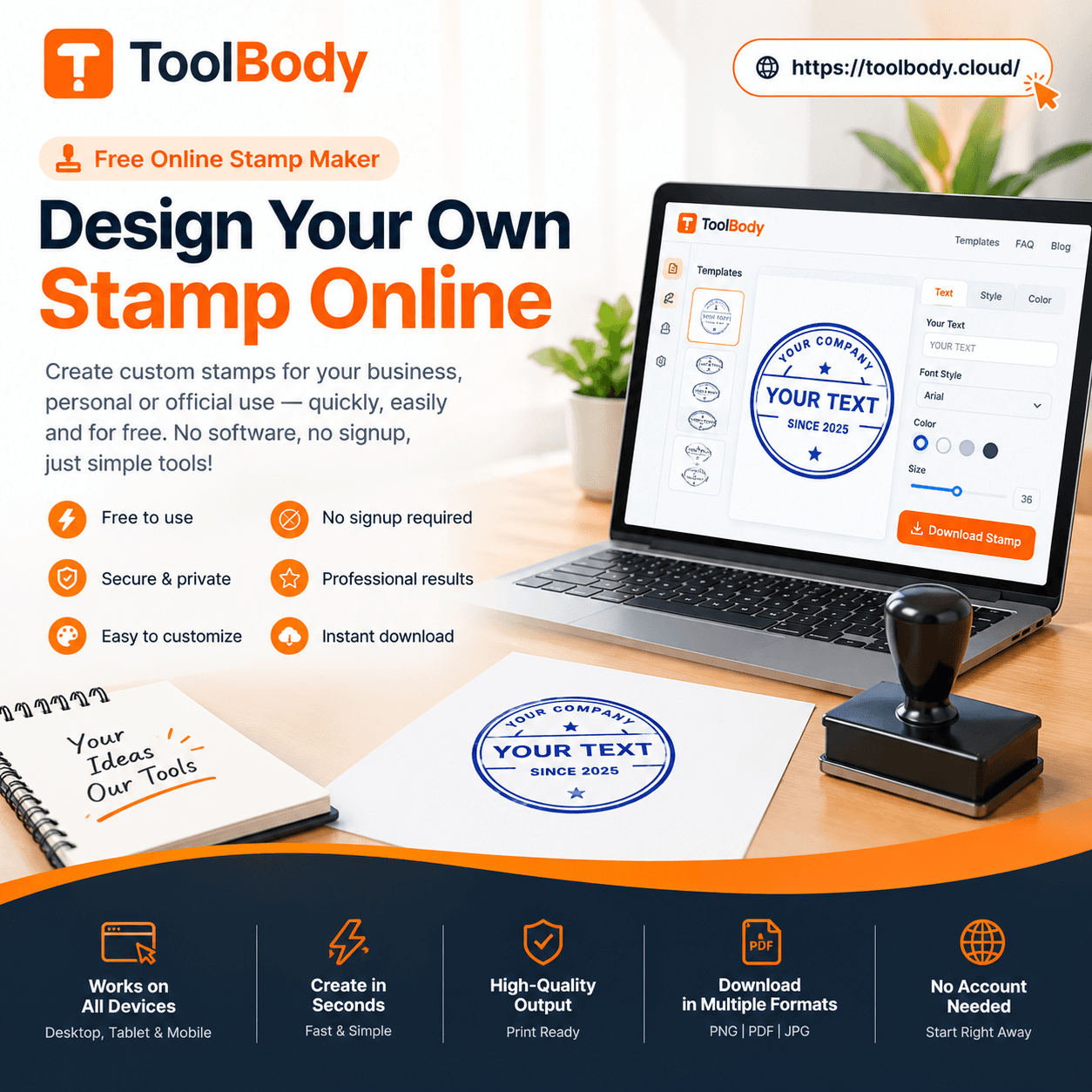
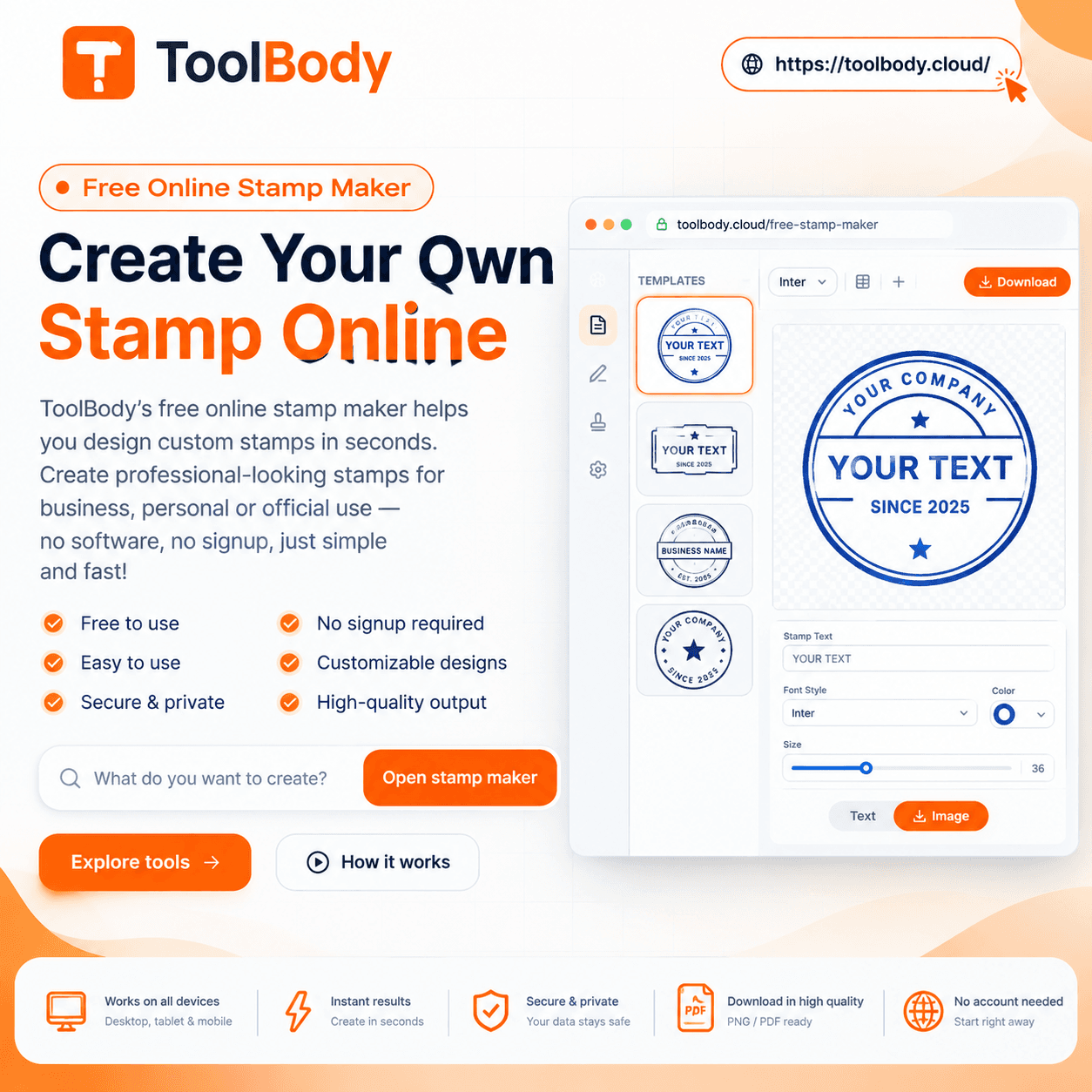
Free online stamp maker and download tool. Create round, rectangle, date and doctor stamps online for PDF, no login needed. Customize text, color and size, then download your stamp in PNG, SVG or PDF.
Free Online Stamp Maker and Download: Create Custom Stamps for PDF and Print
A Stamp You Can Make in Minutes, Without a Rubber Block
A free online stamp maker with download turns a task that once meant a trip to a print shop into a few minutes at your screen. You type your text, pick a shape, adjust the colour, and save the finished design to your device. No waiting, no minimum order, and no fee for a simple impression.
This guide explains how an online stamp maker works, which stamp styles you can create, and how to build one that looks clean and professional. It also covers how to place a stamp on a PDF, which download format suits which job, and the small mistakes that make a digital stamp look amateur. Whether you run a small shop, write prescriptions, teach a class, or sign contracts as a freelancer, you will find a practical path from a blank canvas to a file you can use today.
What an Online Stamp Maker Actually Does
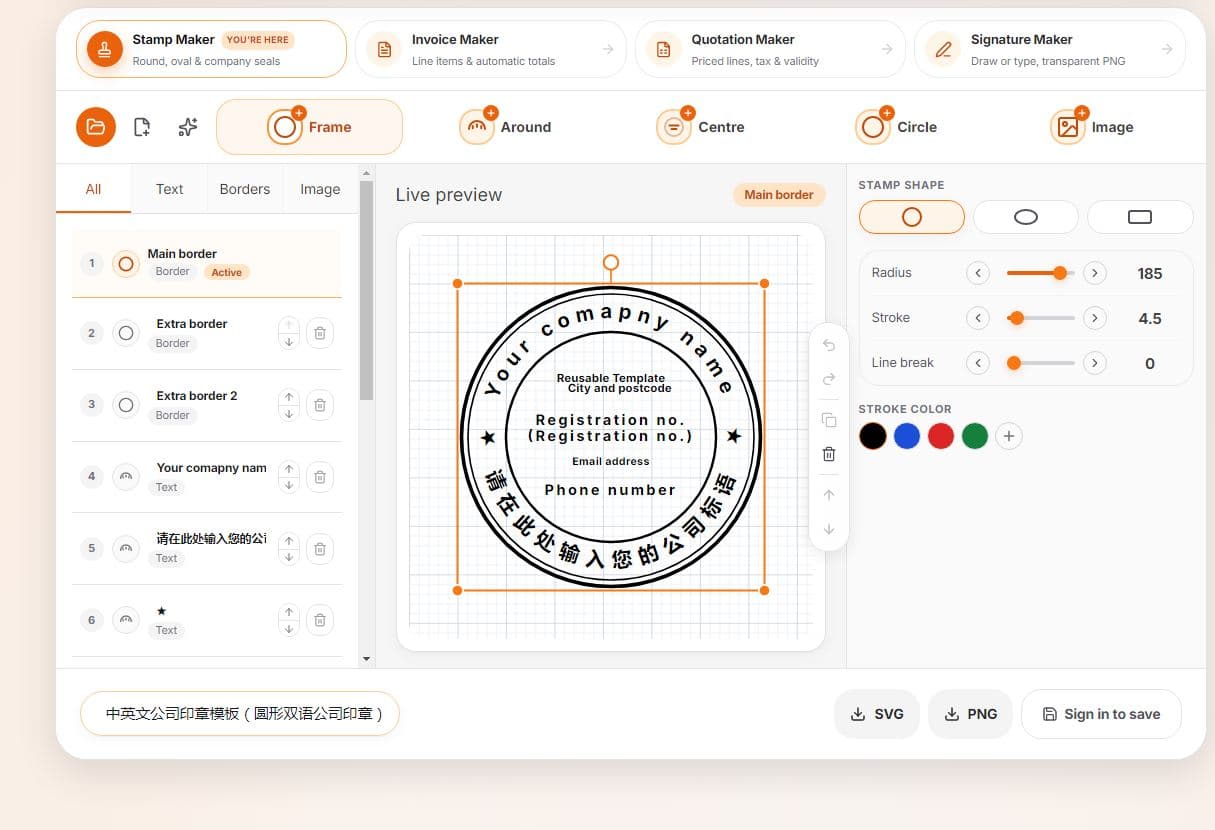
An online stamp maker is a browser-based design tool that arranges text, borders, lines and symbols into the shape of a traditional stamp impression. Instead of carving rubber or ordering a polymer plate, you work on a live preview. Every change you make appears instantly, so you can judge the result before saving anything.
Most tools follow the same basic logic. You choose a layout, such as a circle, a rectangle or an oval. You then fill in the text areas. A round stamp usually has an outer ring of text and a centre line, while a rectangular one stacks several lines inside a frame. After that you set the font, the ink colour, the border thickness and the overall size.
The real convenience lies in what happens at the end. The tool renders your design as an image or vector file with a clear background, which means you can drop it onto a document without a white box around it. Because everything runs in the browser, there is nothing to install, and the same page works on a phone, a tablet or a laptop. For people who only need a stamp now and then, that simplicity is the main attraction.
Stamp Styles You Can Create
Different jobs call for different shapes. Picking the right style first saves you from redesigning later.
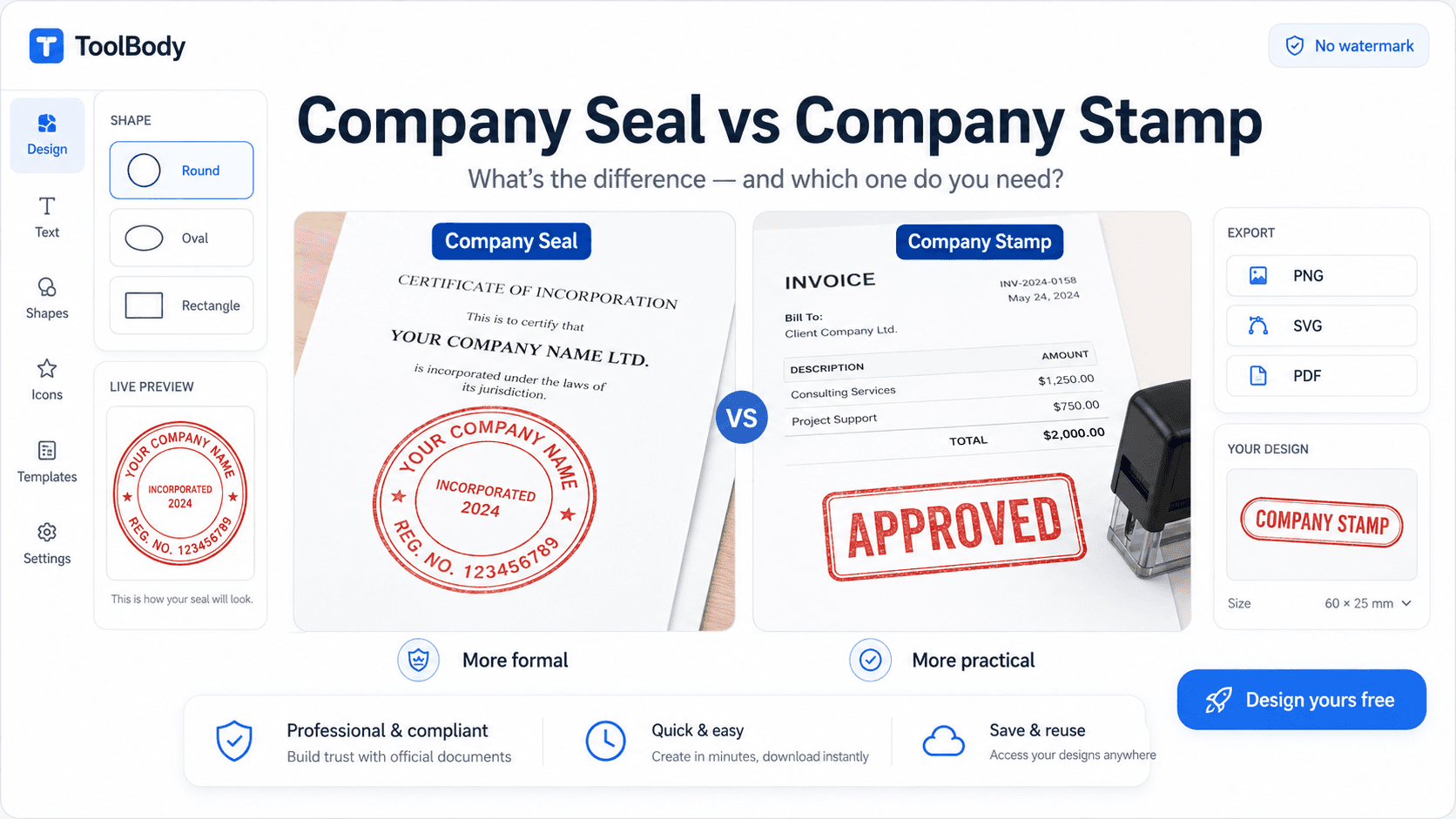
Round stamps. The circular layout is the classic choice for company seals and official marks. Text curves around the edge, and a short name, number or symbol sits in the centre. It suits registered businesses, associations and any document that needs a formal look.
Rectangle stamps. A rectangle gives you straight lines of text, which makes it easier to read and easier to fit longer wording. It works well for return addresses, “Received” marks, “Paid” marks and office notes.
Date stamps. A date stamp pairs a short label with a day, month and year. Teams use it to show when a file was received, approved or filed. Since the date is part of the design, you simply type the value that applies each time.
Doctor stamps. Clinicians often need a compact block with a name, qualification, registration number and clinic details. A rectangular or slightly rounded frame keeps this information tidy and legible on a prescription pad scan.
Company and business stamps. These combine a business name, a line for the address or contact, and sometimes a short tagline. They appear on invoices, delivery notes and letters.
Approval and status stamps. Words such as “Approved”, “Draft”, “Confidential” or “Void” inside a bold frame tell a reader the state of a document at a glance. Reviewers use them constantly during document checks.
Any of these can be adapted. Change the wording, swap the border, and you have a variation that fits your own workflow.
How to Create a Stamp Online, Step by Step
The process is short, but a little planning makes the result noticeably better. Follow this order.
Decide what the stamp must say. Write the exact wording on paper first. Include only what a reader needs: a name, a role or number, and perhaps a city. Extra text crowds the design.
Pick the shape. Choose round for formal seals, rectangle for notes and addresses, or a date layout for tracking. Match the shape to the document it will sit on.
Enter your text. Type each line into its field. Keep outer-ring text short enough to curve smoothly, and place the most important word where the eye lands first.
Set the font. Choose a clear, bold typeface. Decorative scripts look elegant on screen but blur when the stamp is shrunk.
Choose the ink colour. Blue, red and black are the familiar options. Pick one colour with strong contrast against white paper.
Adjust borders and spacing. A double border looks official, while a single thin line feels lighter. Leave a small margin between text and frame.
Check the preview at small size. Zoom out until the stamp is about the size it will appear on the page. If any word becomes hard to read, simplify.
Download the file. Save it in the format that fits your next step, which the download section below explains.
Spending two extra minutes on steps 1 and 7 is what separates a stamp that looks deliberate from one that looks rushed.
Design Tips That Make a Stamp Look Professional
A good stamp is simple. Most weak designs fail because they try to say too much or use too many visual effects. Keep these principles in mind.
Limit the lines of text. Three to five short lines is a comfortable range for a rectangle. For a round stamp, one ring of text plus a centre mark is usually enough.
Use one typeface. Mixing several fonts makes a stamp look cluttered. A single sturdy sans-serif or a classic serif, in capitals, reads well at almost any size.
Respect contrast and colour. One ink colour looks authentic because real ink stamps use a single colour. Avoid gradients and shadows, which belong to graphics rather than impressions.
Mind the thickness. Very thin lines can vanish when a document is printed or compressed. A border that is slightly bolder than you think you need will survive scaling better.
Balance the layout. Centre the main element, keep margins even on all sides, and avoid pushing text against the border. White space is part of the design.
Add a small detail with purpose. A star, a line or a tiny symbol can give a round stamp character. Use it only if it supports the message, not to fill an empty gap.
Before you finalise, view the stamp beside a real scanned document. If it looks natural in that context, the design is ready.
Placing Your Stamp on a PDF
Creating the stamp is half the job. The other half is putting it on a document so it looks as though it was pressed there. A transparent file makes this easy.
Open your PDF in any editor that lets you insert an image. Add the downloaded stamp, then drag it to the spot you want. Typical positions are the lower right corner near a signature line, the top corner for a “Received” mark, or across a page edge for a status word.
Resize it carefully. Hold the corner handle so the proportions stay fixed, because stretching a round stamp into an oval looks wrong immediately. If the editor allows it, lower the opacity a few percent so the mark blends with the page and mimics real ink.
When the document has several pages, repeat the stamp only where it is needed. Many approval workflows require the mark on the first or last page, not on every sheet. Once you are satisfied, save the result as a new PDF and keep the original untouched. That way you can always return to the clean version if a change is requested.
A final tip: after placing the stamp, zoom in to one hundred percent and check the edges. A clean transparent file should show no white outline or fringe.
Choosing a Download Format
The file type you save decides how the stamp behaves later. Here is how the three common options compare.
Format | Best for | Scales without blur | Transparent background |
|---|---|---|---|
PNG | Word files, slides, quick PDF edits | No, fixed pixel size | Yes |
SVG | Print jobs, websites, later redesign | Yes | Yes |
Sharing a ready-to-print sheet | Yes | Depends on the export |
PNG is the everyday choice. It opens in nearly every program and keeps the clear background, so it is ideal for dropping onto documents. Save it at a generous size so it stays sharp when placed on a large page.
SVG is a vector format, which means the stamp is stored as shapes rather than pixels. You can enlarge it to the size of a poster and the edges stay crisp. It is the right pick if you plan to print the stamp or edit it in a design program.
PDF is handy when you want a single, fixed file to send or print. If you need to place the stamp on another document, though, PNG or SVG is usually easier to work with.
When unsure, download PNG and SVG both. The cost is a few seconds, and you will be covered for almost every use.
Who Benefits From a Digital Stamp
The audience for a free stamp maker is wider than most people expect.
Freelancers and small businesses. A branded stamp on invoices, quotations and delivery notes adds a consistent, trustworthy touch without any printing cost. It also helps a new business look established.
Shop owners and traders. A “Paid” or “Received” mark on a receipt scan keeps records clear. Return addresses and business details can be added in seconds.
Clinics and doctors. A compact block with a name, qualification and registration number speeds up paperwork, especially when forms are scanned or emailed to patients and pharmacies.
Teachers and schools. Teachers mark worksheets with an “Approved” or “Checked” stamp, and school offices label circulars, certificates and notices with a neat institutional mark.
Office and admin teams. Status words such as “Draft”, “Final” or “Confidential” help teams track documents through review. A date stamp records the day a file arrived.
Students and event organisers. Club certificates, event passes and project reports look more complete with a simple seal in the corner.
In every case, the value is the same: a quick, consistent mark that you control, created whenever you need it.
Common Mistakes to Avoid
A few errors show up again and again, and all of them are easy to prevent.
Overcrowding the design. Too many lines or tiny print makes a stamp unreadable once it is reduced. Cut the wording until only essential details remain.
Choosing a fancy font. Ornate lettering looks charming in the editor and turns to mush on paper. Pick clarity over decoration.
Stretching the stamp. Dragging only one side distorts a round seal. Always scale from a corner.
Using a low-resolution image. A small PNG enlarged later looks pixelated. Download a larger file or use SVG.
Leaving a white background. A stamp with a solid white box covers the text beneath it. Confirm the background is transparent before placing it.
Placing it over important text. A stamp that hides a signature, number or date defeats its own purpose. Choose empty space.
Skipping the proofread. A typo in a stamp is repeated on every document. Read each line twice before saving.
A Note on Validity and Responsible Use
A digital stamp is a design file. Whether a particular office, bank, court or government body accepts it depends on that organisation’s own rules, and those rules differ by country and by purpose. Some accept a scanned stamp on internal paperwork but require a physical seal or an official registration for legal filings.
Before you rely on a digital stamp for anything formal, ask the receiving party what they require. Use your own real name, business and credentials only. Creating a stamp that imitates another person, a company you do not represent, or a government authority can cause serious problems and is not a proper use of the tool.
For everyday purposes such as invoices, internal approvals, classroom marking and personal records, an online stamp is a practical and widely used solution.
FAQs
It is a browser-based tool that lets you design a stamp by choosing a shape, typing your text and picking a colour. You see a live preview and save the result as a file, with nothing to install.
Yes. You can design your stamp and download it to your device at no cost. Check the tool’s terms if you need unusually large files or extra features.
You can create round, rectangle, date, doctor, company and approval stamps. Each layout can be customised with your own wording, border and colour.
Choose the round layout, type your text for the outer ring and the centre, set the font and colour, then download. Keep the ring text short so it curves neatly.
Yes. Pick a date layout, add a label such as “Received” or “Approved”, enter the day, month and year, and save it. You can make a new version each time the date changes.
You can design a compact stamp with a name, qualification, registration number and clinic details. Use only your own real credentials.
Download the stamp as a transparent PNG, open your PDF in an editor that supports images, insert the stamp and drag it into place. Resize from a corner so the shape is not distorted.
PNG is best for quick use on documents. SVG stays sharp at any size and suits printing. PDF is useful for sharing one fixed file.
PNG and SVG downloads keep a clear background, so the stamp does not cover the text under it. Zoom in after placing it to confirm there is no white edge.
Many online stamp makers work without an account. A login is usually only needed if you want to save projects for later.