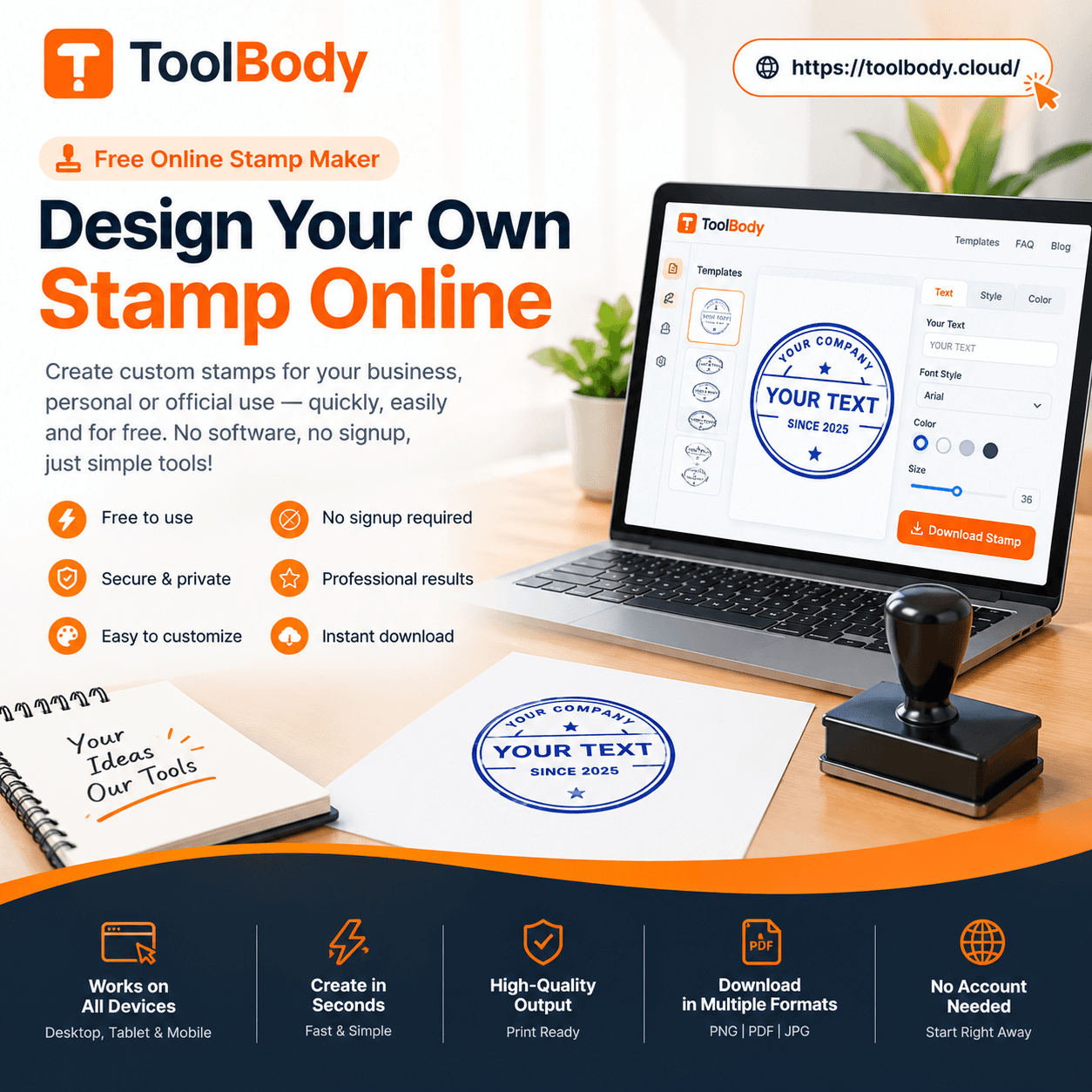
Free Stamp Maker Online – Create Custom Company Stamps & Seals
Create a professional Free Stamp Maker online, Design company stamps, business seals, approval stamps and custom stamps. Download PNG, SVG or PDF with no sign-up.
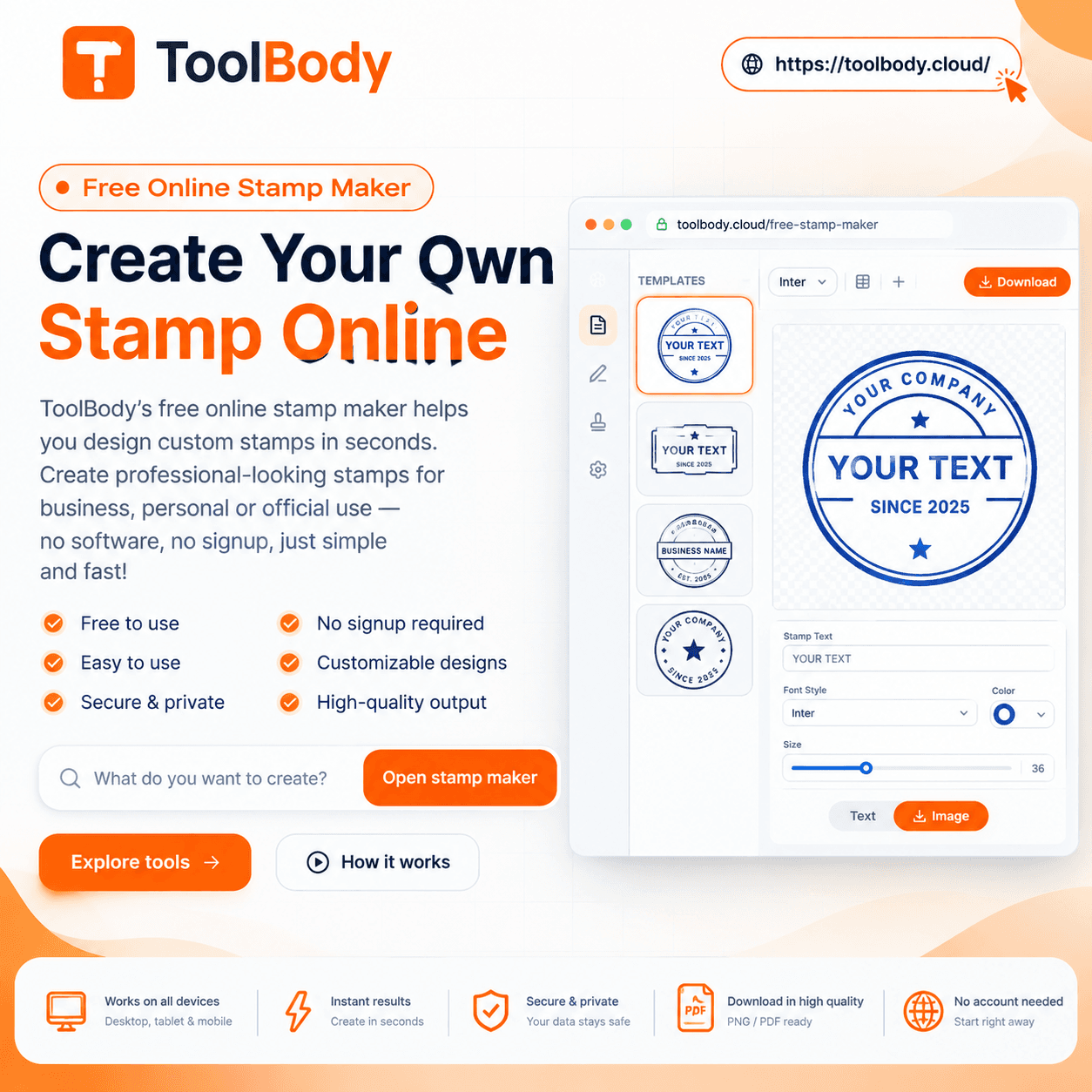
Creating a professional stamp no longer requires graphic design software, complicated templates, or waiting for a designer. With a free online stamp maker, you can create a custom company stamp, business seal, approval stamp, office stamp, or personal name stamp directly from your browser.
Whether you need a stamp for invoices, business documents, quotations, letters, forms, school paperwork, or digital files, an online stamp generator gives you a simple way to create and download your design in just a few minutes.
What Is a Free Online Stamp Maker?
A free online stamp maker is a browser-based design tool that allows you to create a customized stamp using text, shapes, borders, colors, logos, and other design elements.
Instead of installing professional design software, you can open the stamp maker, enter your information, customize the appearance, preview the result, and download the finished design.
Depending on the tool, a digital stamp can be exported in formats such as PNG, SVG, or PDF, making it suitable for both digital documents and physical production workflows.
Why Create a Stamp Online?
Traditional stamp design can take unnecessary time. You may need to explain your requirements to a designer, wait for revisions, and then request the final file.
An online stamp maker gives you control over the design from the beginning.
You can:
Create a stamp from your computer or phone
Choose your preferred shape
Add your company or personal name
Add registration or business information
Customize fonts and spacing
Select a stamp color
Add a logo
Preview the design instantly
Download the finished stamp
Create different versions for different purposes
For simple stamp designs, this can be considerably faster than creating the artwork from scratch in traditional design software.
What Types of Stamps Can You Create?
A good online stamp generator should be flexible enough to handle different requirements.
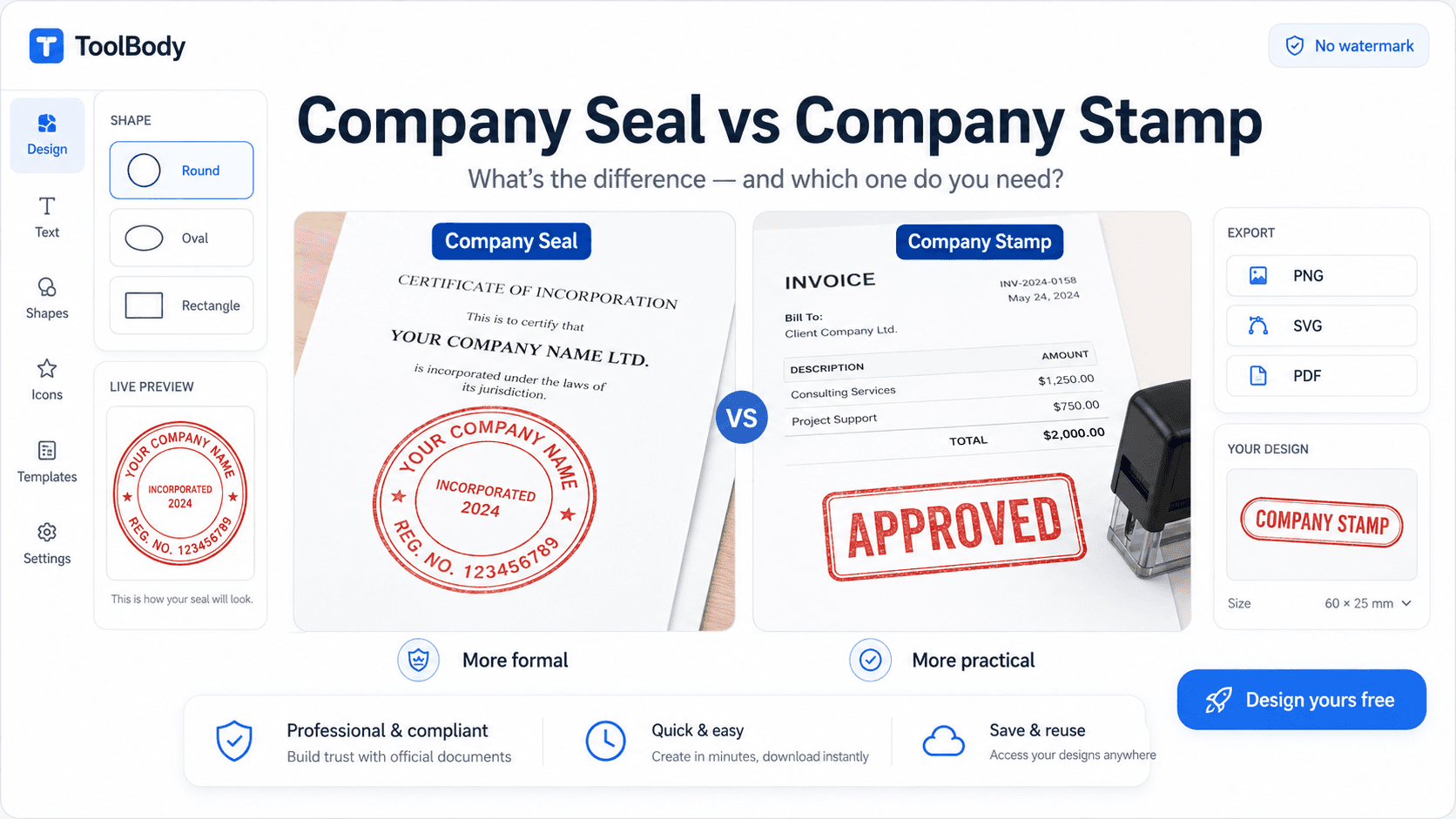
Company Stamp
A company stamp can contain the business name, location, registration information, logo, or other details appropriate for your organization.
It can be designed as a circular seal, rectangular stamp, oval stamp, or another suitable format.
Business Stamp
Business owners and freelancers can create custom stamps for invoices, quotations, correspondence, forms, and internal paperwork.
Round Stamp
Round stamps are commonly used for company-style seals and professional-looking business marks.
You can place text around the outside of the circle and add additional information in the center.
Oval Stamp
An oval layout can provide a softer alternative to a circular stamp and works well for personal names, professional offices, organizations, and decorative designs.
Approval Stamp
Create workflow stamps such as:
APPROVED
PAID
RECEIVED
CHECKED
REVIEWED
ORIGINAL
COPY
PROCESSED
CONFIRMED
URGENT
These can be useful for office and document-management workflows.
Office Stamp
An office stamp can be created for filing, document processing, administrative tasks, or internal communication.
Personal Name Stamp
You can also create a stamp containing your full name, initials, monogram, or personal brand.
Logo Stamp
Businesses that want a branded appearance can incorporate their logo into the center of a stamp design.
How to Create a Stamp Online
Creating a custom stamp can be completed in a few straightforward steps.
Select a Stamp Shape
Start by choosing the shape that matches your intended use.
Common options include:
Circle
Oval
Rectangle
Square
Rounded rectangle
A circular design is often suitable for company seals, while rectangular layouts work well for approval and document-processing stamps.
Add Your Text
Enter the information you want to appear on the stamp.
For example, a company stamp could contain:
ABC Trading Company
City Name, Country
Registration No. 12345
The exact information should depend on your business requirements and applicable local rules.
Adjust the Typography
Choose a font and adjust the size, spacing, alignment, and position of your text.
For a professional stamp, prioritize readability over decorative typography.
A stamp may look attractive on a large screen but become difficult to read after being printed at a small size.
PNG vs SVG: Which Stamp Format Should You Choose?
The best format depends on how you plan to use the stamp.
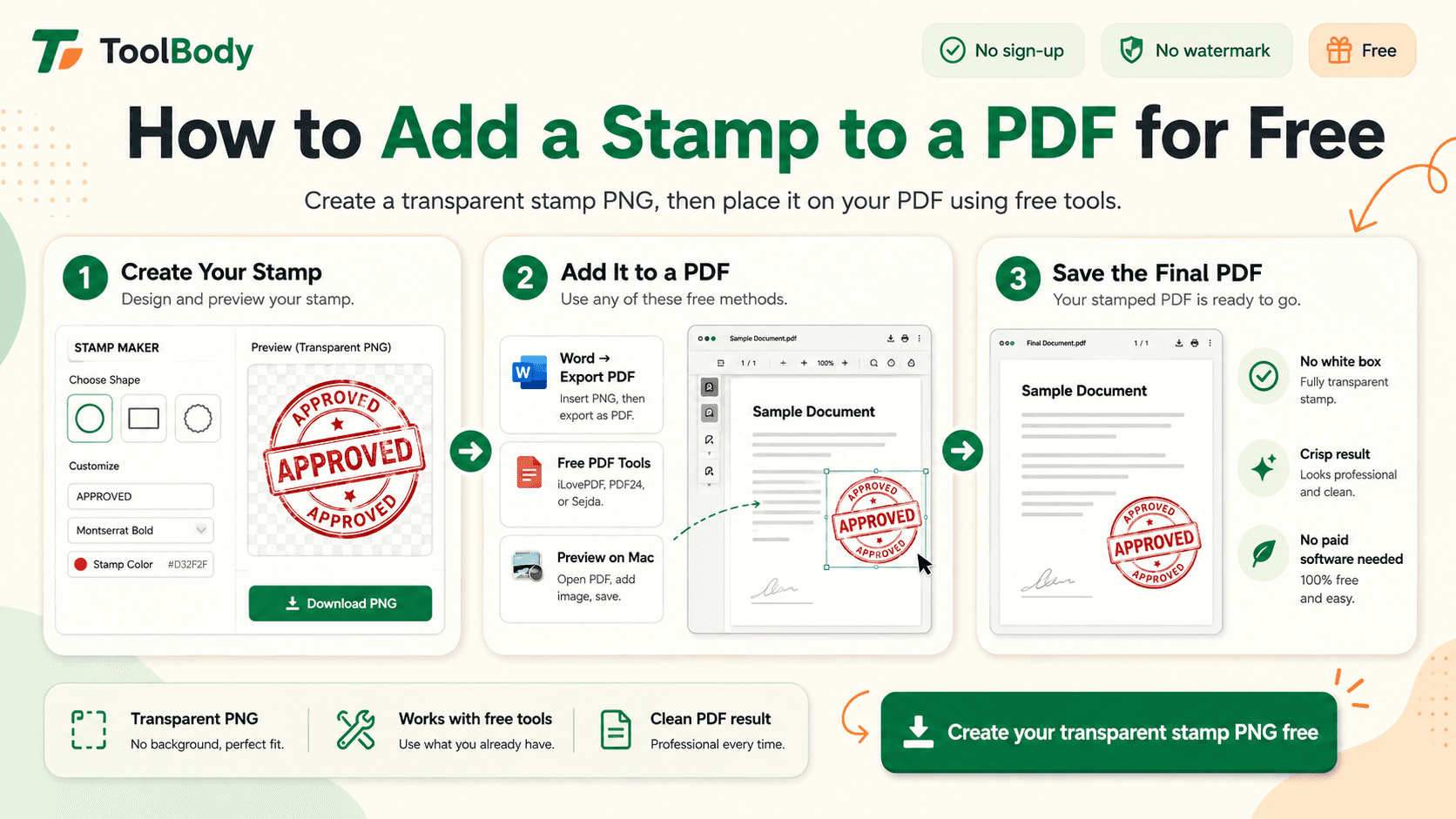
PNG is a practical choice for everyday digital use.
A transparent PNG can be placed over:
Invoices
PDFs
Word documents
Letters
Images
Presentations
Digital forms
The transparent background helps the stamp blend naturally with the document.
SVG
SVG is a vector format, which means the artwork can be resized without the same pixilation associated with raster images.
SVG can be useful when:
A physical stamp needs to be produced
A designer needs to edit the artwork
The design must be resized
You want to maintain sharp lines at different sizes
If a print shop requests vector artwork, SVG may be the preferable option.
What Should a Company Stamp Include?
There is no single design that works for every company. Requirements can vary by country, industry, organization, and intended purpose.
A business stamp may include:
Company name
Business name
Registration number
License number
Location
Branch name
Department
Logo
Professional designation
Contact information
Avoid adding unnecessary information simply to fill space.
A professional stamp should be easy to understand at a glance.
How to Design a Professional Company Stamp
A good stamp design is usually simple.
Keep Important Text Clear
The company name should be prominent and readable.
Avoid Excessive Information
Adding too many lines can make a stamp look crowded.
Use Consistent Spacing
Balanced spacing between text, borders, and logos makes the design look more professional.
Choose Readable Fonts
A clean font is generally more suitable than a highly decorative typeface.
Make the Logo Simple
If you use a logo, make sure it remains recognizable at the final stamp size.
Test the Design at Actual Size
Don't judge the design only at full-screen size. Zoom out or print a sample to see whether important details remain readable.
Digital Stamp or Physical Stamp?
A digital stamp is an image or vector file that can be placed into an electronic document.
A physical stamp is produced from a stamp plate or similar physical material and is applied using ink or another physical process.
The same artwork can sometimes be prepared for both purposes, but the final production requirements may differ.
For digital documents, transparent PNG is often convenient.
For physical production, an SVG or other vector file may be preferable because it can be scaled cleanly.
Where Can You Use a Digital Stamp?
A custom digital stamp can be useful in many document workflows.
Common examples include:
Invoices
Quotations
Purchase documents
Business letters
Internal forms
Delivery documents
Reports
Certificates
Office paperwork
Digital records
Company correspondence
Always make sure that using a digital stamp is appropriate for the specific document and organization.
FAQs
The best tool depends on what you need. Look for an editor that supports the shapes, text customization, logo options, and export formats required for your project.
Yes. A browser-based stamp generator can be used to create a company-style stamp by adding your business information and customizing the design.
Yes. Round stamp generators can create circular designs with outer-ring text, center information, borders, and optional logos.
Yes, when the stamp maker supports image uploads. A high-quality transparent logo generally produces the best result.
Many online stamp makers support PNG export. PNG is particularly useful for digital documents and transparent-background applications.
PNG is a raster image format, while SVG is a scalable vector format. PNG is convenient for everyday digital documents, while SVG is useful when you need artwork that can be resized without losing sharpness.
Yes. A transparent stamp image can be placed into a PDF using compatible PDF editing software
Yes. You can create stamps containing terms such as Approved, Paid, Received, Checked, Reviewed, or Confirmed.
If the stamp maker is mobile-friendly, you can use it directly through your Smartphone browser without installing desktop design software.