How to Add a Stamp to a PDF for Free (Without Buying Software)
Add a stamp to any PDF for free without paid software - create a transparent stamp PNG, then place it using Word, free PDF tools, or Preview on Mac.
You don't need Adobe Acrobat Pro. You don't need a $500-a-year subscription. You don't need to download anything heavy or sign up for an account. Adding a stamp to a PDF for free is genuinely simple — and once you've done it once, every future stamp takes about 60 seconds.
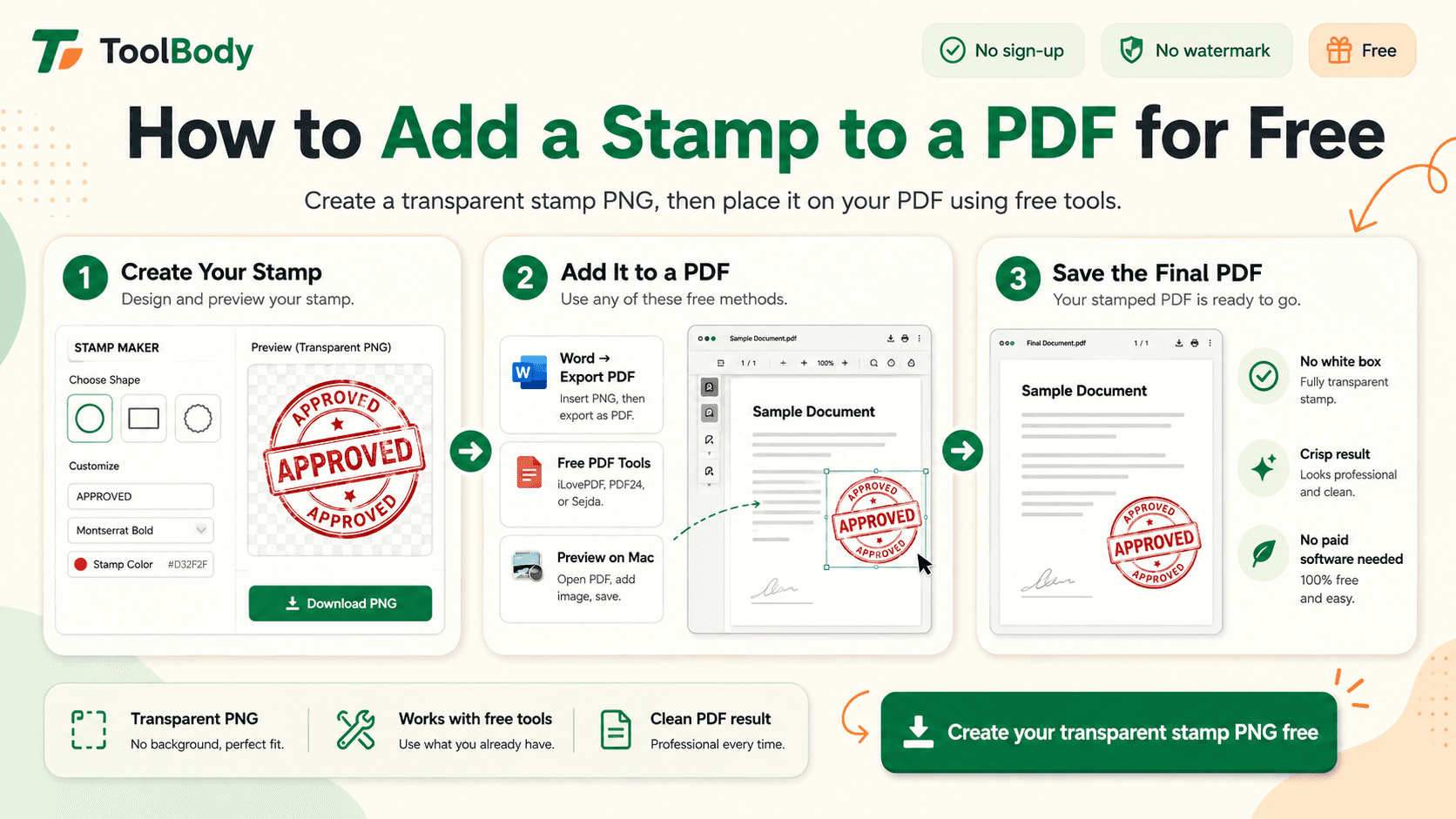
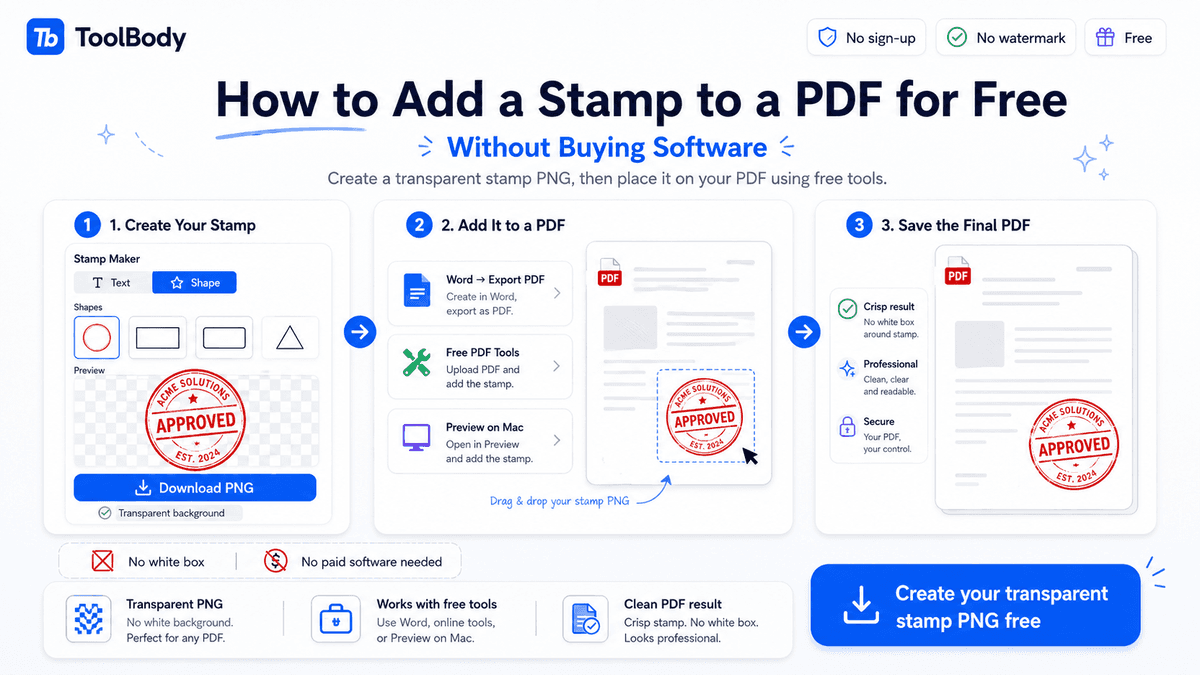
The whole workflow has two parts. First, create the stamp itself as a transparent PNG (the part most people skip, then complain about the white box around their stamp). Second, place the PNG on the PDF using free tools you almost certainly already have. This guide covers both halves, with three free placement methods that work for different situations.
When you need to stamp a PDF
A few common situations:
Marking an invoice as PAID when you've received payment
Adding a company seal to an outgoing contract or letterhead
Placing an APPROVED stamp on a document going through internal review
Adding a "DRAFT" or "CONFIDENTIAL" watermark to in-progress documents
Marking received documents as RECEIVED with the date for AP processing
Stamping certificates issued by your business with an official mark
Adding a logo stamp to outgoing PDFs as a brand element
Different stamps for different uses, but the workflow is the same in every case: create the stamp, place it on the PDF.
Step 1 — Create your stamp as a transparent PNG
This is the half most people get wrong. They scan a paper stamp, try to use a JPG from somewhere on their computer, or take a screenshot from another tool — and end up with a white rectangle around the stamp that looks awful on the finished PDF.
The fix is creating the stamp fresh in a tool that produces a clean transparent PNG by default.
Open the free online stamp maker
Open the free online stamp maker in your browser. No sign-up, no software install, no account creation.
Pick a shape that fits your stamp's purpose
Round — the most versatile. Works for company seals, workflow stamps (APPROVED, PAID), and general business stamps.
Rectangular — best for date stamps (RECEIVED ON ___), address stamps, or text-heavy workflow marks.
Oval — works for company seals when the company name is too long for a comfortable round layout.
Custom shapes — hexagonal, scalloped, shield, badge — for stamps where the shape itself carries meaning.
Add your text or logo
Type your business name, the stamp text (APPROVED, PAID, RECEIVED), or upload your business logo. For company seals specifically, see the company seal vs company stamp guide for what content to include — formal seals and everyday stamps have different conventions.
Choose color
Blue — professional, neutral, the most common business stamp color
Red — high-attention, used for APPROVED, PAID, REJECTED, VOID
Black — formal, works for any context
Brand color — matches your business identity
Download as transparent PNG
The default export is transparent PNG. Save the file somewhere you'll find it again — `business-stamp.png` is fine. You'll reuse this same PNG on every future PDF.
That's the stamp created. Now to place it on the PDF.
Step 2A — Insert in Word, export as PDF
This method works for everyone with Microsoft Word installed. It's the simplest free option if you're already a Word user.
The trick: open the PDF in Word
Modern Word versions can open PDFs and convert them to editable Word documents. The conversion isn't always perfect for complex PDFs (formatting can shift), but for stamping purposes — where you're just adding an overlay image — it works well.
Steps
Open Word. File → Open, then browse to your PDF.
Word will ask if you want to convert the PDF to an editable Word document. Click OK.
The PDF appears as a Word document. The text is editable; the layout approximates the original.
Insert → Pictures → This Device → select your stamp PNG.
The stamp inserts at your cursor position. Probably too big and probably in the wrong place.
Right-click the stamp → Wrap Text → In Front of Text. This lets you drag the stamp anywhere on the page without disturbing the document layout.
Drag the stamp to where you want it. Resize using corner handles only (corner handles preserve proportions; side handles distort the stamp).
File → Save As → PDF. Save the stamped PDF.
When this method works best
The PDF doesn't have complex formatting (forms, special tables, embedded fonts)
You have Word already installed
You want a quick free option without trying other tools
When this method doesn't work as well
The PDF has complex formatting that Word's conversion mangles
You're working with a multi-page PDF and only want to stamp specific pages
The PDF is locked or password-protected (Word can't convert protected PDFs)
For complex PDFs, Method 2B or 2C is usually a better fit.
Step 2B — Free online PDF tools
For PDFs that Word can't handle cleanly, browser-based PDF tools are the next free option. The two most reliable for stamp insertion:
PDF24
A free browser-based PDF toolset with editing capabilities.
Go to PDF24's online tools and pick the Edit PDF option.
Upload your PDF.
In the editor, click Add Image (or similar Insert Image option).
Upload your stamp PNG.
Click on the page where you want the stamp to appear.
Drag to reposition; use corner handles to resize.
Click Save or Apply, then download the stamped PDF.
iLovePDF
Similar browser-based PDF toolset.
Go to iLovePDF and pick the Edit PDF tool.
Upload your PDF.
Click Add Image in the toolbar.
Upload your stamp PNG.
Position on the page, resize as needed.
Click Edit PDF to apply changes, download the result.
Privacy note
Both PDF24 and iLovePDF process your files on their servers during your session. For sensitive documents (HR records, legal contracts, anything with personal data of others), be aware that you're uploading the file to a third party. For non-sensitive everyday business documents, this is usually fine.
Free tier limits
Both tools have daily usage limits on the free tier — typically 2-3 tasks per day. For occasional stamp insertion, the free tier is enough. For high-volume stamping, you'd hit the limit quickly.
When this method works best
The PDF was complex and Word's conversion didn't preserve it cleanly
You don't have Word installed
You're working with a one-off PDF that doesn't justify learning new software
Step 2C — Preview on Mac
If you're on a Mac, Preview is built into macOS and handles PDF image insertion natively. No download, no upload, no third-party service.
Steps
Open the PDF in Preview (double-click it from Finder if Preview is your default PDF viewer).
Click View → Show Markup Toolbar (or click the markup icon in the top toolbar — it looks like a pen tip).
Drag your stamp PNG directly from Finder onto the PDF page. Preview embeds it as an image.
Drag the stamp to position it. Use corner handles to resize.
File → Save (or File → Export as PDF to make sure the format stays as PDF).
Why Preview is great for stamping
No upload anywhere — your file never leaves your computer
Drag-and-drop is faster than menu navigation
Built into the OS, always available, no installation
Handles multi-page PDFs naturally — each page is independently stampable
Mac-only limitation
This method only works on macOS. For Windows users, Methods 2A and 2B are the equivalent paths.
Keeping the original clean
A workflow tip that experienced users build into their stamping process: never stamp the original PDF directly. Always make a copy first.
Why
If you stamp the original and need to send the unstamped version later (for the client's records, for legal proceedings, for a different recipient), you've lost it
If you stamped the wrong copy (it was a draft, not the final), you have to recreate the original
For document management and version control, the stamped version is a derivative document — it should have its own filename
Recommended naming convention
For the original: `invoice-INV-001-original.pdf` For the stamped version: `invoice-INV-001-PAID.pdf`
The naming pattern makes it obvious which is which when you look at the folder months later.
When you can stamp the original
A few exceptions where modifying the original is fine:
Internal-only documents that won't be sent externally
Documents where you're the sole author and have version control elsewhere
Documents in a tracked system where the original is preserved automatically (DMS, cloud document management)
For everything else, copy first, stamp second.
Common problems and how to fix them
Problem 1 — White box around the stamp
Cause: The stamp image isn't a transparent PNG. It's a JPG with a white background, or a PNG that was saved without transparency.
Fix: Create a new stamp in the stamp maker — the default export is transparent PNG. If you must use an existing stamp image with a white background, remove the background using a free tool like remove.bg, then re-export as transparent PNG.
The same root cause and fix applies to signatures — see our guide on how to make a transparent signature for the equivalent workflow on signature images.
Problem 2 — Stamp looks blurry or pixelated
Cause: The stamp PNG was created at low resolution, and scaling it up on the PDF makes the pixelation visible.
Fix: Recreate the stamp in the stamp maker at a larger canvas size. Export at high resolution. The stamp will stay sharp when sized to fit the PDF.
Problem 3 — Stamp is too small to read
Cause: Most PDF editors insert images at their original pixel size, which can be tiny on a full-page PDF.
Fix: Use the corner handles to resize. A typical office stamp on a printed letter is around 30-40mm wide, which translates to about 120-160 pixels wide on a standard PDF page rendered at typical screen DPI. Make it large enough to read clearly without dominating the document.
Problem 4 — Stamp position shifts when opened on a different computer
Cause: Some PDF editors save inserted images in ways that other PDF viewers interpret slightly differently.
Fix: Flatten the PDF before sending it. Most editors have a "Flatten" option that bakes the stamp into the document permanently. Once flattened, the stamp position is locked across any viewer.
Problem 5 — Multi-page PDF only got stamped on one page
Cause: Most free tools stamp the page you place the image on, not all pages automatically.
Fix: Add the stamp to each page individually for small documents. For long documents needing the same stamp on every page, use the batch-stamp feature in paid Adobe Acrobat or in free PDF-XChange Editor's free tier.
Problem 6 — Can't add a stamp because the PDF is locked
Cause: The PDF has security restrictions preventing editing.
Fix: If you legitimately have authorization to modify the document, the owner can remove the restrictions with the original password. If you don't have authorization to modify it, you shouldn't be stamping it anyway — work with the document's owner instead.
Quick reference: which method to use
| Your situation | Best free method | |---|---| | You have Word, simple PDF | Method 2A (Word) | | Complex PDF with formatting | Method 2B (free online tools) | | You're on a Mac | Method 2C (Preview) | | Sensitive document, don't want to upload | Method 2C (Preview) on Mac, or Method 2A (Word) on Windows | | Multi-page batch stamping | Free PDF-XChange Editor or paid Adobe Acrobat | | One-off quick stamp | Method 2B (browser-based) is fastest |
Putting it together
The end-to-end workflow once you have your stamp PNG saved:
Make a copy of the original PDF (`document.pdf` → `document-STAMPED.pdf`)
Pick the placement method that fits your situation (Word, online tool, or Preview)
Open the PDF copy in that tool
Insert the stamp PNG, position it, resize it
Save the stamped PDF
Send the stamped version to whoever needs it; keep the original clean for your records
Total time after the first stamping: about 60 seconds per PDF.
Stamp types for different document purposes
A few common stamps and what they're used for:
APPROVED / REJECTED / PENDING — workflow review stamps
PAID / RECEIVED / PROCESSED — accounts payable and receivable
DRAFT / FINAL / VOID — version and status marking
CONFIDENTIAL / INTERNAL ONLY — distribution control
Company seal or logo stamp — branding and authentication
Date stamps — receipt and processing date tracking
For workflow-specific stamps (APPROVED, PAID, RECEIVED), the office workflow stamp templates cover the standard designs and conventions for each.
Create your transparent stamp now
The whole free workflow starts at the stamp maker. Design once, reuse forever. The PNG you create works on every future PDF you need to stamp — and on every other document type (Word, Google Docs, emails, web pages) as a bonus.
If you also need to add a signature to the same PDF, see our companion guide on creating a transparent signature. The two tools work the same way: design once, save the PNG, drop it on the document.
Related guides
The free stamp maker — the tool itself
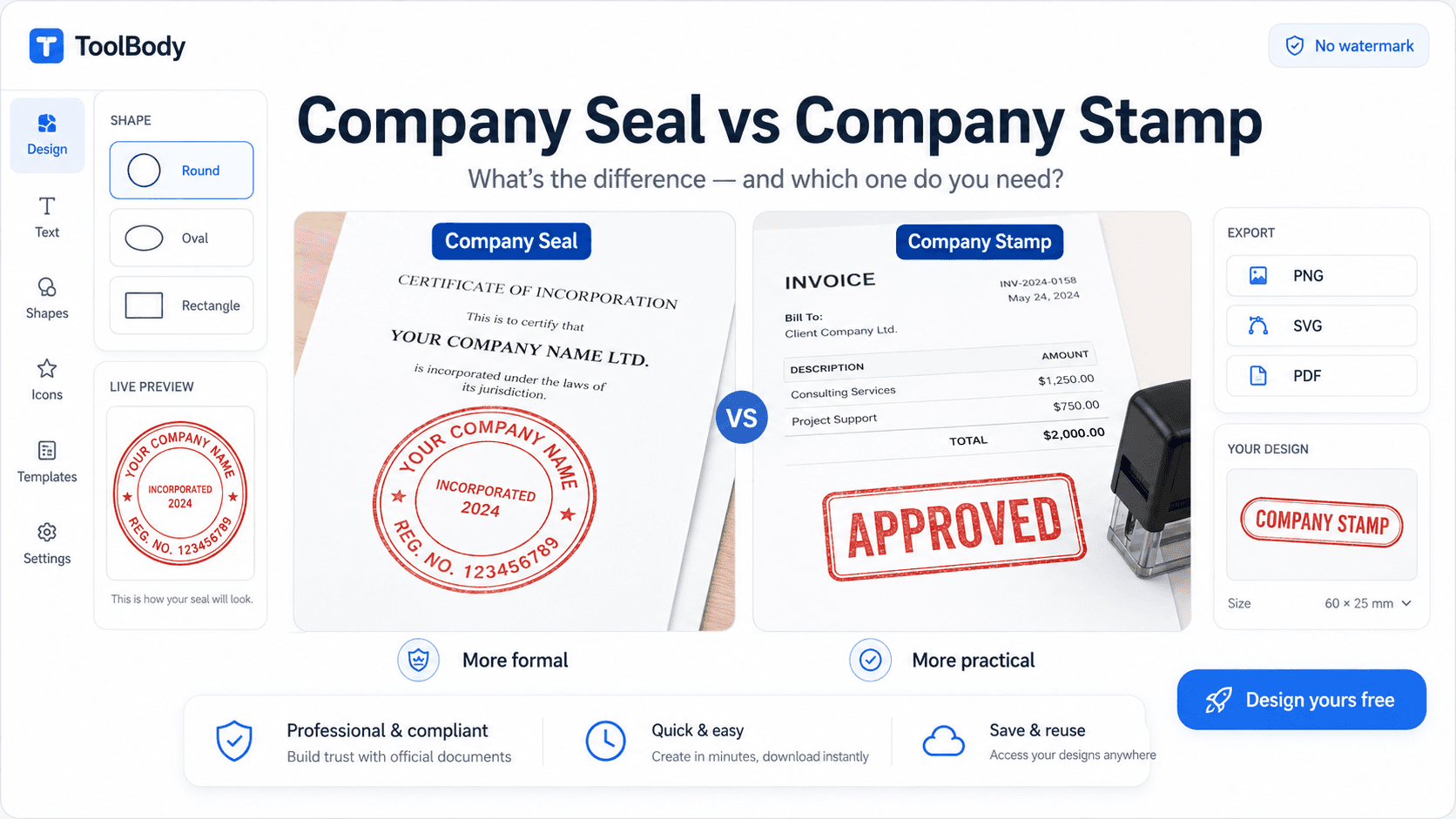
Company seal vs company stamp — what to put on a stamp depending on its purpose
How to make a transparent signature — same workflow for signatures
Office workflow stamp templates — APPROVED, PAID, RECEIVED designs
How ToolBody works — overview of the three-tool workflow
FAQs
Yes. Adobe Acrobat Pro is expensive, and you don't need it for adding stamps to PDFs. Three free options cover almost all use cases: Microsoft Word (insert the stamp into the document and export as PDF), free online PDF tools like PDF24 or iLovePDF, and Preview on Mac (built into macOS). All three handle stamp insertion at no cost. The only step that matters is creating a stamp with a transparent background - which the free online stamp maker does in about a minute.
No. The whole workflow runs in tools you likely already have. Microsoft Word is part of Office which many people use for work. Free online PDF tools run in your browser - no install needed. Preview is built into every Mac. The only digital tool you might not already have is the stamp maker - which is also browser-based and requires no install.
PNG with a transparent background. This is critical. A JPG stamp has a white box around it that shows up on the PDF, ruining the appearance. The free online stamp maker exports as transparent PNG by default - if you create your stamp there, the format is correct automatically. If you're using a stamp image from elsewhere, check that it's a PNG with no visible background before placing it on a PDF.
Yes. Once you save the PDF with the stamp embedded, the stamp becomes part of the file. Anyone who opens the PDF - in any PDF viewer, on any device - will see the stamp exactly as you placed it. No special software is required on the recipient's side. The stamp is visible in browsers, on phones, in email previews, and in any standard PDF reader.
If the PDF has been flattened (most save-as-PDF operations do this automatically), the stamp is locked into the document and can't be easily removed without specialized PDF editing software. If the PDF was saved as an editable document with the stamp as a separate layer, a recipient with PDF editing software could remove it. For most everyday business uses, the flattened approach is what you want - it makes the stamp tamper-resistant for casual recipients.
Only if the stamp PNG was created at low resolution. The free online stamp maker exports at high resolution by default, so stamps look sharp at any reasonable display size. If you're scaling a stamp PNG much larger than its original size, pixelation can appear - in that case, recreate the stamp at a larger canvas size and re-export.
Yes. Each stamp is just an image you insert into the document. You can add as many stamps as needed - a workflow PAID stamp at the top, a company seal at the bottom, an APPROVED stamp on each page. Position each one individually. There's no limit on the number of stamps you can add to a single PDF.
Most free tools require you to add the stamp page by page. For batch stamping, the paid version of Adobe Acrobat has a Stamp tool that applies a stamp to multiple pages at once. PDF-XChange Editor offers batch stamping in its free tier. For small documents (under 20 pages), manual placement on each page is the simplest free approach.
Yes. On iPhone, open the PDF in Files or Mail, tap the markup icon, tap the plus icon, choose Add Image, and select your stamp PNG. On Android, use a free PDF app like Adobe Acrobat Reader (free tier) or Xodo with image insertion features. The workflow mirrors desktop - insert your transparent stamp PNG, position it, save.
A stamp marks the document as approved or processed but doesn't carry independent legal authentication. For everyday business uses - invoices, internal approvals, informal contracts - a stamp on a PDF is widely accepted. For legally binding contracts requiring certified electronic signatures, use a regulated e-signature platform like DocuSign or Adobe Sign. The free stamp approach is suitable for everyday business use, not for high-stakes legal documents that need cryptographic authentication.