Quotation Format: How to Create a Professional Quotation + Free Template
Learn the correct quotation format, what a quotation must include, how to make a quotation step by step, and the difference between a quotation and an estimate. Includes a free quotation template.
Every sale that involves a price discussion starts with a quotation. Whether you are a freelancer replying to a client brief, a contractor pricing a renovation, or a supplier responding to a purchase request, the quotation is the document that turns a conversation into a commitment.
A badly formatted quotation causes confusion, delays approval, and can lead to disputes about what was actually agreed. A clear one does the opposite: it makes the offer easy to understand, easy to approve, and easy to convert into an invoice later.
This guide covers the correct quotation format, what every quotation should include, how to make a quotation step by step, and how a quotation differs from an estimate and an invoice. At the end, you can use a free quotation template to create your own in minutes.
What Is a Quotation?
A quotation (often shortened to "quote") is a formal document from a seller to a potential buyer stating the price at which the seller will provide specific goods or services. Unlike a casual price mention, a quotation is a firm offer: if the client accepts it within the validity period, the seller is expected to deliver at that price.
Quotations are used in almost every industry, from web design and consulting to construction, printing, logistics, and manufacturing. They typically come before a purchase order or contract and are later followed by an invoice once the work is done.
What Should a Quotation Include?
Regardless of industry, a professional quotation contains the same core elements. Missing any of these is the most common reason a quotation gets sent back for clarification.
Your business details – company name, logo, address, phone, email, and registration or tax number if applicable.
Client details – the client's name, company, and address.
The word "Quotation" – clearly marked so it is not mistaken for an invoice.
Quotation number – a unique reference for tracking and follow-up.
Quotation date – the day it was issued.
Validity period – the date until which the price is guaranteed.
Itemised list – each product or service with description, quantity, unit price, and line total.
Subtotal, taxes, and discounts – shown as separate lines.
Grand total – the final amount the client will pay.
Payment terms – deposit, milestones, or full payment on completion.
Scope and conditions – what is included, what is excluded, delivery time, and any assumptions.
Signature or acceptance line – where the client confirms the order.
Professional Quotation Format Explained
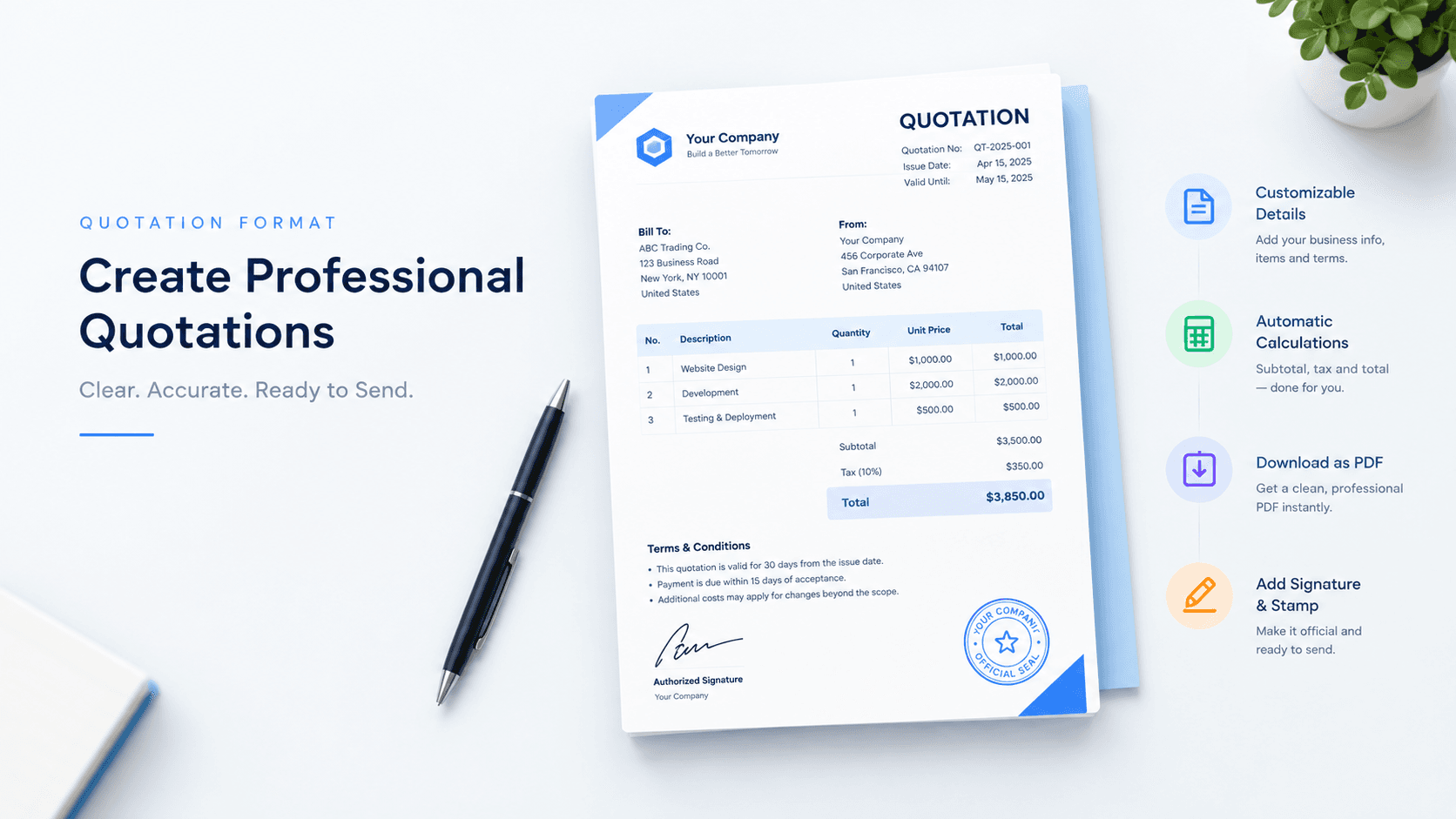
The format is the order and layout in which these elements appear. A professional quotation follows a top-to-bottom structure that mirrors how a client reads it.
Header. Your logo and business details on the left or top, the word "Quotation" prominently on the right, followed by the quotation number, date, and validity date.
Client block. A "Quotation for" or "Bill to" section with the client's details. If the goods are delivered somewhere else, add a "Deliver to" block as well.
Line items table. The main body of the document. Columns usually run: item number, description, quantity, unit, unit price, tax rate (if it varies), and amount. Keep descriptions specific. "Website redesign" is vague; "Redesign of 5 page corporate website including responsive layout and contact form" is clear.
Totals block. Subtotal, discount, tax, and grand total aligned at the bottom right. Show the currency explicitly.
Terms and notes. Payment terms, delivery timeline, scope exclusions, and warranty or revision policy. This section protects both sides.
Acceptance. A line for the client's name, signature, and date, or a short note explaining how to accept (for example, by replying to the email or signing a purchase order).
Keeping this order consistent across every quotation you send makes your business look organised and makes your documents easier to compare when a client receives several.
Quotation Template: What Should It Look Like?
A quotation template is a pre-built layout with all of the sections above already in place. You fill in the details, add your line items, and the totals are calculated for you.
A good quotation template should:
Fit on a single A4 page for most jobs, with line items that extend to a second page when needed.
Use a clean, readable font and generous spacing so the numbers are easy to scan.
Have clearly labelled columns and a visible grand total.
Include your branding (logo and colours) without overpowering the content.
Export to PDF so the layout does not shift when the client opens it.
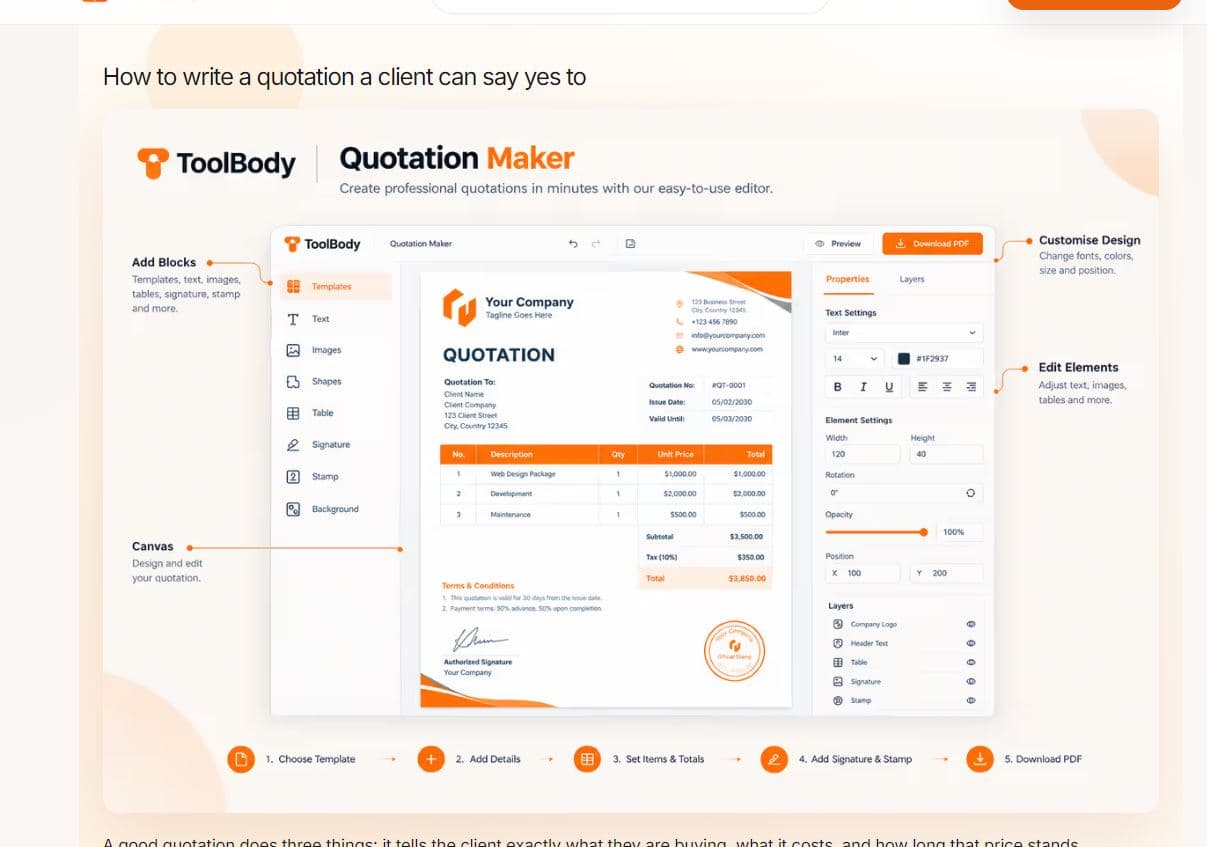
ToolBody's free quotation maker opens with a pre-filled sample quotation so you can see this structure immediately and replace the sample values with your own.
How to Make a Quotation Step by Step
Here is the process most businesses follow, whether they use a template or a tool.
Understand the requirement. Confirm exactly what the client wants before pricing it. Ambiguity now becomes a dispute later.
Add your business details. Company name, logo, address, and contact information at the top.
Add the client details. Name, company, and address, then assign a unique quotation number and today's date.
List the items or services. Add each one as a separate line with a clear description, quantity, unit price, and line total.
Apply taxes and discounts. Show tax as its own line. If you are offering a discount, show the original price and the discount separately so the client sees the value.
Set the validity period. State the date until which the quotation is valid. Fifteen to thirty days is typical.
Add terms and scope. Payment terms, delivery timeline, what is included, and what is not.
Review and download as PDF. Check every number, then export the quotation as a PDF and send it to the client.
Once the client accepts, you can convert the same details into an invoice using the free invoice maker, so the numbers match exactly.
Quotation vs Estimate vs Invoice
These three documents are often confused, but they serve different purposes at different stages.
| Quotation | Estimate | Invoice | |
|---|---|---|---|
| Purpose | Fixed price offer | Approximate cost | Request for payment |
| Binding? | Yes, once accepted within validity | No, price can change | Yes, payment is due |
| When used | Scope is clear and defined | Scope is uncertain | After goods or services are delivered |
| Contains | Itemised prices, validity date, terms | Rough cost range or figure | Final amounts, due date, payment details |
| Follows | Enquiry or brief | Initial discussion | Accepted quotation or delivered work |
Quotation vs estimate is the distinction that matters most. Use a quotation when you know the scope and can commit to a price. Use an estimate when the final cost depends on things you cannot confirm yet, such as the condition of a site or the amount of material needed. If you send an estimate, label it clearly so the client does not treat it as a fixed price.
Common Quotation Mistakes to Avoid
No validity date. Without one, a client can accept an old price months later.
Vague descriptions. "Services rendered" leaves too much room for disagreement.
Hidden or missing taxes. Always show tax separately and state whether prices are inclusive or exclusive.
No quotation number. Makes revisions and follow-ups hard to track.
Missing scope exclusions. If something is not included, say so.
Sending an editable file. Word or Excel files can be altered. Send a PDF.
Forgetting the acceptance step. Tell the client exactly how to confirm the order.
How to Create a Quotation PDF Online
A PDF is the right format for sending a quotation. It keeps the layout fixed, looks the same on every device, and cannot be edited by the recipient.
With an online quotation tool, the process is simple: fill in the details, add the line items, and download the PDF. There is no need for design software or spreadsheet formulas. If your company policy requires a stamp or signature on quotations, you can create both with ToolBody's free stamp maker and signature maker and add them before downloading.
Free Quotation Maker for Businesses and Freelancers
ToolBody's quotation maker is built for small businesses, freelancers, and contractors who need professional quotations without paying for accounting software. It runs in the browser, requires no sign-up, and adds no watermark.
You get:
A ready quotation template with the correct format built in.
Automatic line-item totals, tax, and discount calculations.
Your logo, colours, and business details on every quotation.
Clean PDF download in one click.
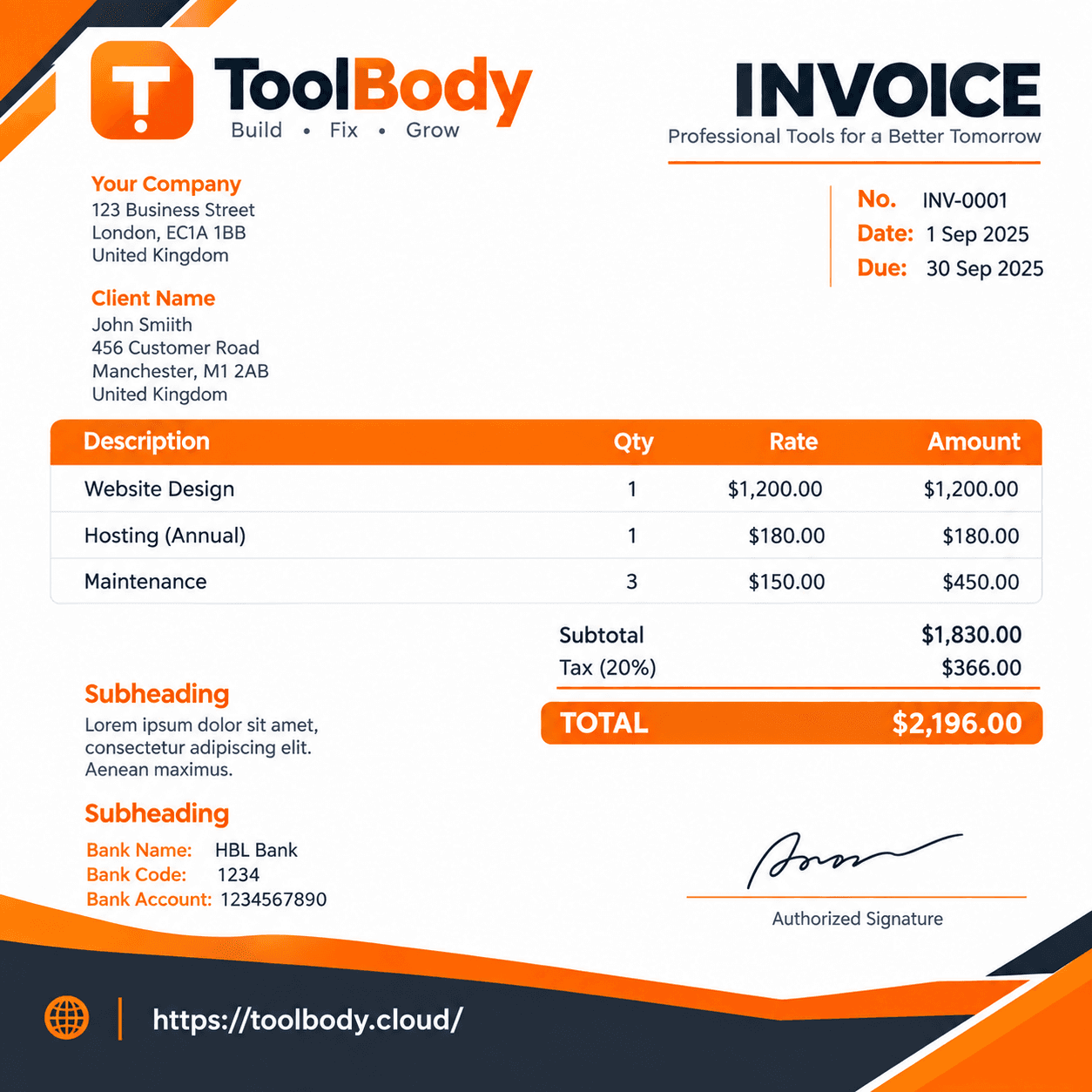
A matching invoice maker for when the quotation is accepted.
Explore more free online tools on ToolBody to handle the rest of your business documents.
FAQs
A standard quotation format includes your business details, the client's details, a quotation number and date, a validity period, itemised products or services with quantity and unit price, subtotal, taxes, discounts, grand total, payment terms, and a space for signature or acceptance.
A quotation is a fixed price offer that the seller commits to for a stated validity period. An estimate is an approximate cost that can change once the actual work is known. Quotations are usually used when scope is clear; estimates when it is not.
Once the client accepts a quotation within its validity period, it generally becomes the basis of a contract at that price. Always state the validity date and any conditions clearly.
Yes. ToolBody's free quotation maker lets you create a quotation in the browser and download it as a PDF with no sign-up and no watermark.
Yes. A unique quotation number makes it easy for both you and the client to refer to the document, track revisions, and match it to the final invoice.
Most businesses use 15 to 30 days. Use a shorter period if your costs change frequently, and always print the expiry date on the quotation.