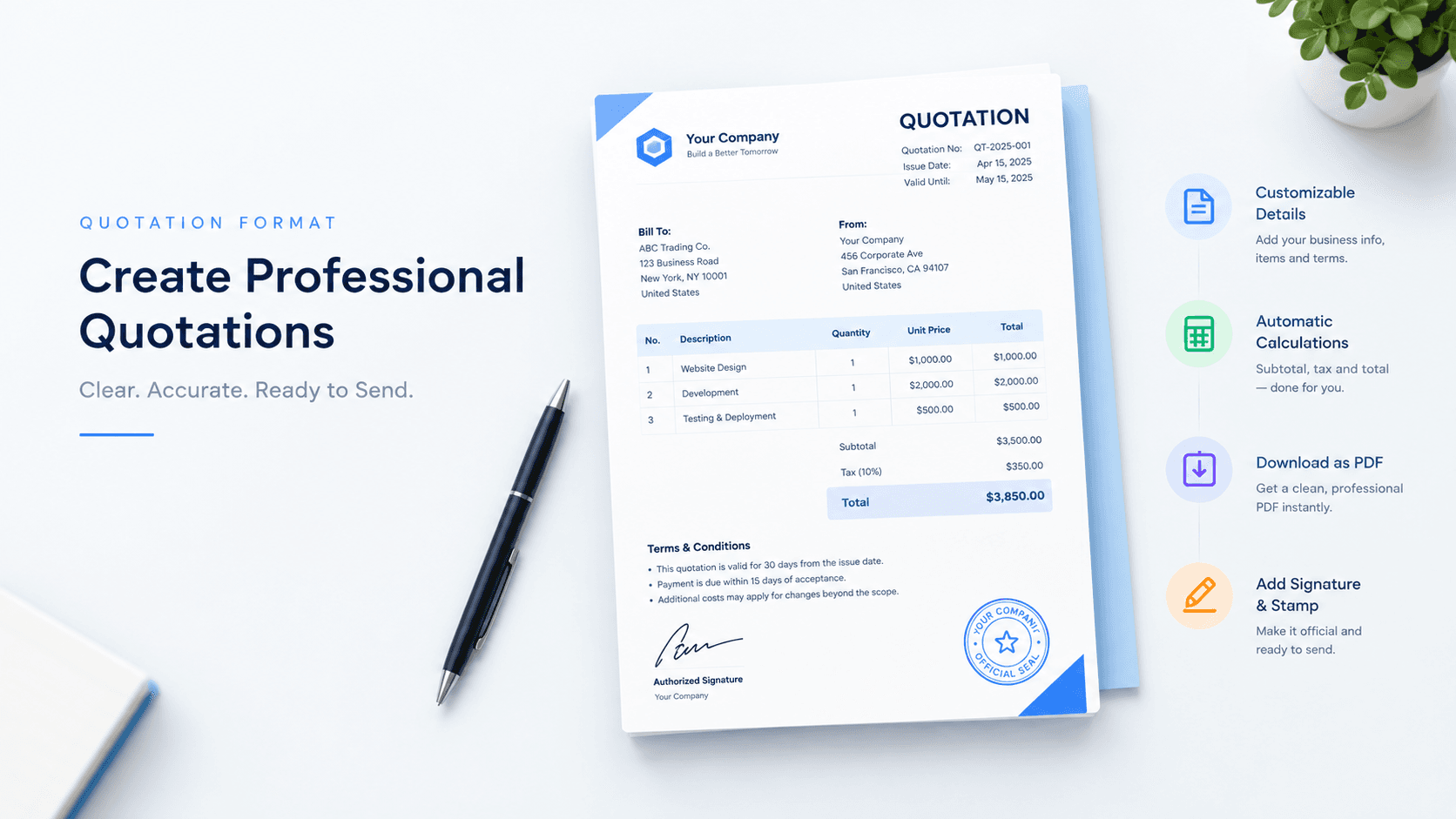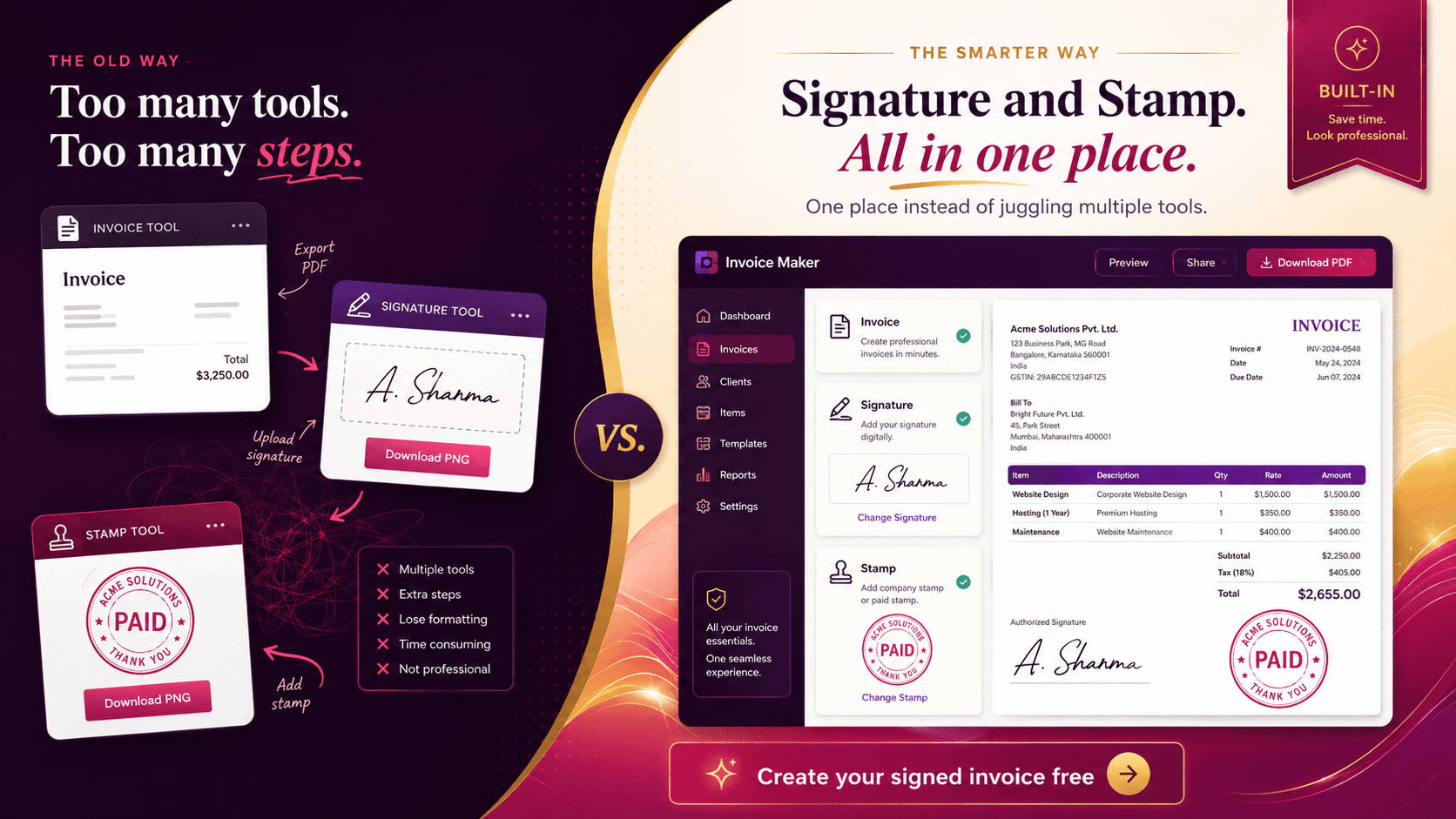
Free Online Quotation Generator PDF – Quotation Maker Online Free, Without Login, Download & Word Template
Create professional quotations in seconds with our free online quotation generator. Use ready-made templates, download as PDF or Word, and make quotes online free. No login, no signup needed.
Free Online Quotation Generator PDF – Quotation Maker Online Free, Without Login
Sending a clear, professional quotation is often the first step to winning a customer. A messy price list in a chat message looks careless, while a neat quotation with your logo, itemized prices and terms builds trust right away. Our free online quotation generator PDF tool lets you create that kind of document in a few minutes. You do not need to sign up, install software or learn design. Fill in the details, preview the result and download your quotation as a PDF. It works for freelancers, small shops, contractors and growing companies alike.
What Is a Quotation and Why Does It Matter?
A quotation is a formal document in which a seller tells a buyer the price of specific goods or services, along with the conditions attached to that price. It is an offer. Once the customer accepts it, the quotation usually becomes the basis for a purchase order and later an invoice.
A good quotation does three jobs. It shows the customer exactly what they will pay, it protects you from disputes about scope or price, and it presents your business as organized and reliable. Customers often compare several quotations before deciding, and the one that is clear, complete and easy to read tends to stand out.
Why Use a Free Online Quotation Generator PDF?
Many people still build quotations by hand in a word processor or spreadsheet. That works until you have to edit totals, fix tax calculations or copy the same layout for the tenth customer. An online quotation maker removes most of that friction.
Speed: Enter items once and the totals are calculated for you.
Accuracy: Automatic math means fewer mistakes in subtotals, discounts and tax.
Professional look: A clean layout makes even a small business look established.
No cost: The quotation maker online free option means you can create as many quotes as you need without a subscription.
Any device: It runs in your browser on a phone, tablet or computer.
Key Features of Our Quotation Maker
No login required. You can start creating immediately. There is no account, no email verification and no waiting. This is the main reason many users prefer a quotation maker online free without login.
Free download. When your quotation is ready, you can download it as a PDF and send it to your customer by email or messaging app. The free download does not add a paywall at the last step.
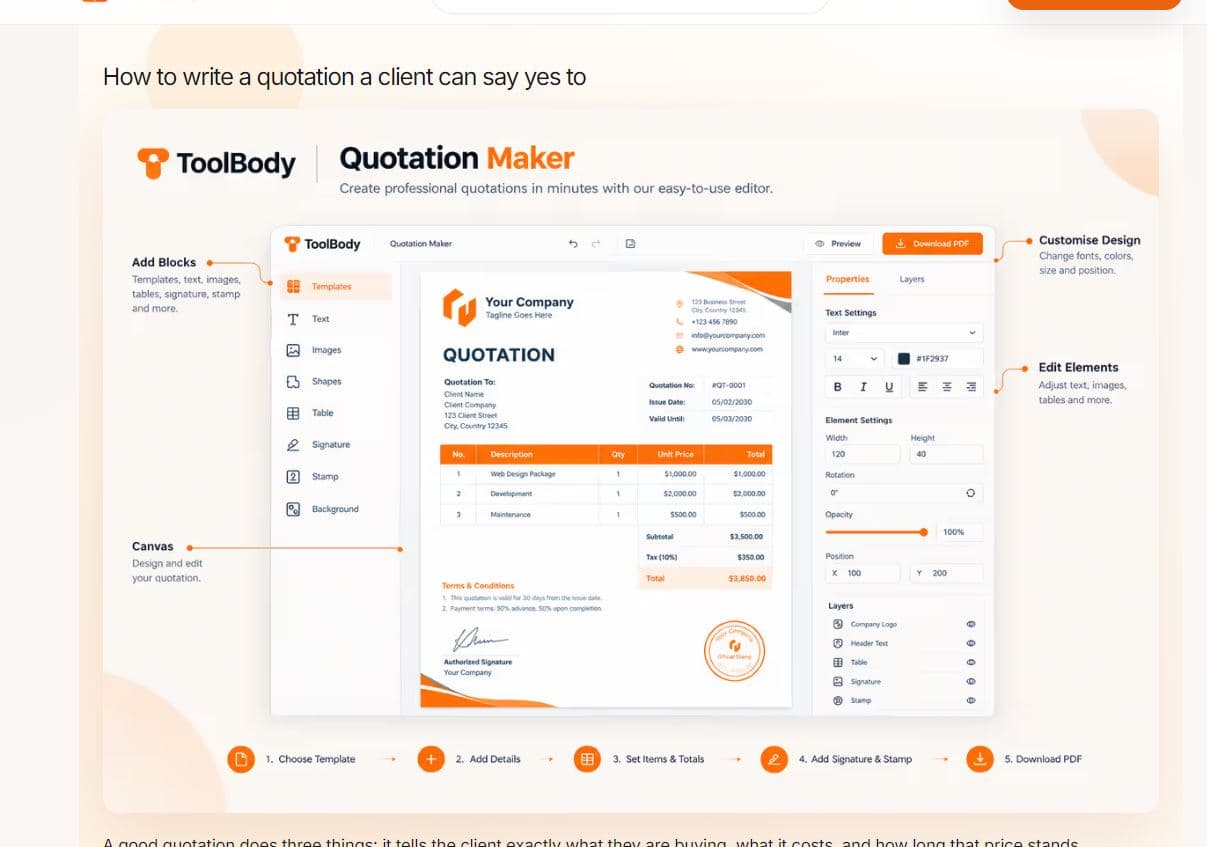
Ready-to-use online quotation template. Start from a clean template instead of a blank page. Replace the sample text with your own business name, customer details and items.
Add your logo and business details. Upload your logo and fill in your address, phone number and email so the document looks like it came from your brand.
Itemized pricing. Add as many line items as you need, each with a description, quantity, unit price and total.
Tax, discount and shipping fields. Apply a percentage or a fixed amount and see the final total update instantly.
Notes and terms. Add payment terms, delivery time, validity period and any special conditions at the bottom of the quotation.
Print-ready PDF. The exported file is sized for standard paper, so it prints cleanly if the customer wants a hard copy.
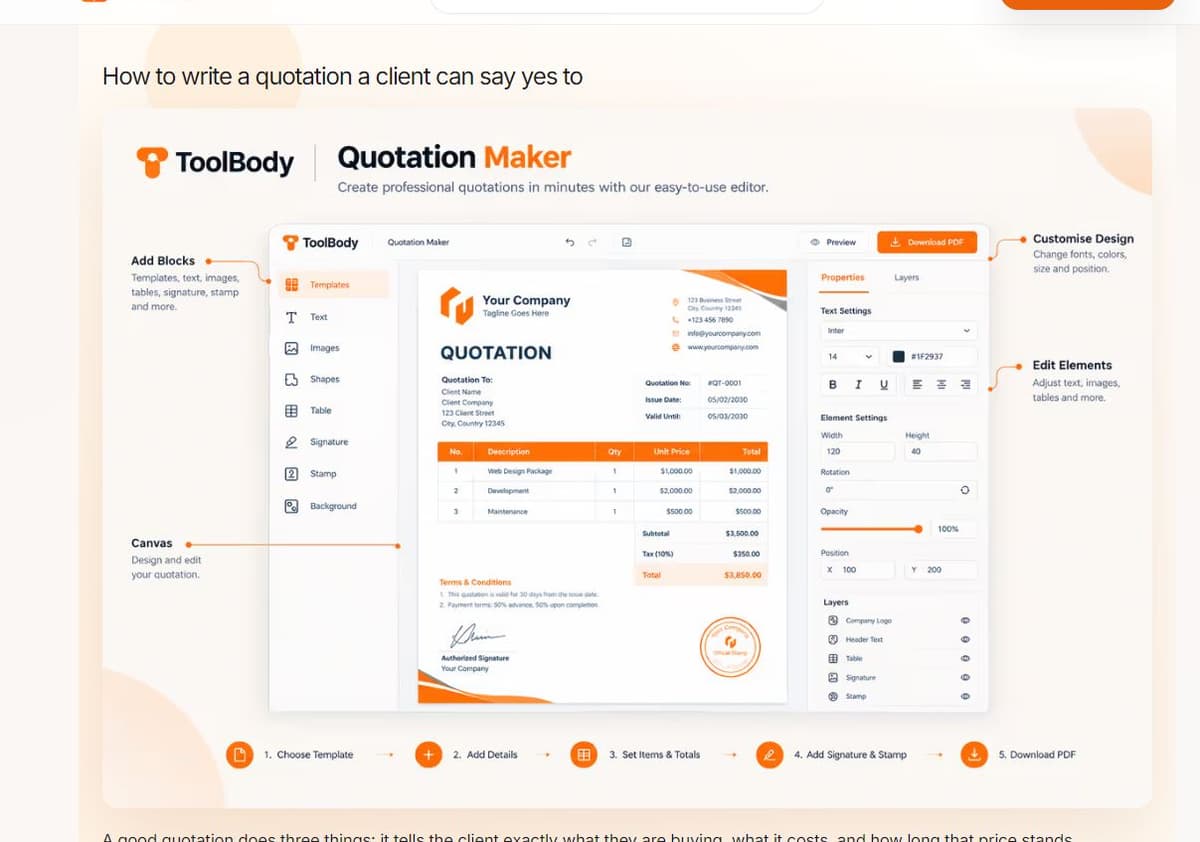
How to Create a Quotation Online in 5 Simple Steps
Step 1: Add your business information. Enter your company name, address, phone number and email. Upload your logo if you have one.
Step 2: Enter the customer details. Add the client’s name, company, address and contact information. Include a quotation number and the date.
Step 3: List your products or services. Add each item with a short description, quantity and price. Keep descriptions specific so there is no confusion later.
Step 4: Set tax, discount and terms. Apply tax or a discount if needed. Write your payment terms and how long the quotation stays valid, for example 15 or 30 days.
Step 5: Preview and download. Check everything on the preview screen, then download the PDF. Send it to your customer and keep a copy for your records.
What to Include in a Professional Quotation
A quotation does not need to be long, but it should be complete. Make sure it contains the following.
Your business name, logo and contact details, so the customer knows who is making the offer.
Customer name and address, so the quote is tied to a specific buyer.
Quotation number and date, which make tracking and follow-up easier.
Validity period, since prices can change and you should not be bound to an old figure forever.
Itemized list of goods or services with quantity, unit price and line total.
Taxes, discounts and extra charges shown separately so the total is transparent.
Payment terms, such as advance payment, installments or payment within a number of days.
Delivery or completion timeline, to set expectations from the start.
Terms and conditions, covering things like warranty, cancellation or revision limits.
Signature or approval space, so the customer can confirm acceptance.
Quotation vs. Invoice vs. Estimate
These three documents are often confused, but they serve different purposes.
A quotation is a fixed-price offer made before work begins. If the customer accepts, you are expected to honor that price within the stated validity period.
An estimate is an approximate cost. It can change if the scope of work changes or if unexpected costs appear.
An invoice is a request for payment sent after the goods are delivered or the work is done.
In a typical workflow, you send a quotation first, receive confirmation, complete the job and then issue an invoice. Using the right document at the right time keeps your records clean and avoids misunderstandings.
Who Can Use This Quotation Maker?
This tool is useful for almost anyone who sells something.
Freelancers such as designers, developers, writers and photographers who need to quote a project price.
Small shops and wholesalers who send price offers to regular buyers.
Contractors and service providers including builders, electricians, plumbers and event planners.
Manufacturers and suppliers who respond to bulk orders and tenders.
Students and beginners who want to learn how a professional quotation is structured.
Because the quotation maker is browser-based and free, you can try it without any commitment.
Tips to Write a Quotation That Wins Customers
Respond quickly. Customers often choose the first business that gives a clear answer. A fast quotation shows you are serious.
Be specific. Instead of writing “website design,” list the pages, revisions and features included. Specific wording prevents disagreements.
Keep the layout clean. Avoid clutter. A simple table with clear totals is easier to read than a crowded page.
State what is not included. If travel, installation or extra revisions cost more, say so clearly.
Set a validity date. This encourages the customer to decide and protects you from price changes.
Follow up politely. If you do not hear back within a few days, send a short message asking whether they have any questions.
Save your quotations. Keep a copy of every PDF you send. It helps when a customer returns months later.
Download Your Quotation as PDF or Word
PDF is the best format for sending a quotation because it looks the same on every device and cannot be edited accidentally. If you prefer to edit the document further, you can also recreate the layout in Word using the same sections and table structure. Many users create the first version online, download the PDF for the customer and keep a Word copy for later changes. Whichever format you choose, the quotation maker gives you a clean base to work from.
Is It Safe to Use a Quotation Maker Without Login?
Yes. Since you do not need to create an account, there is no password to remember and no profile to manage. You enter your information, generate the PDF and leave. It is still good practice to avoid entering sensitive details such as bank passwords or personal ID numbers in any quotation. Only include what the customer needs to see: business details, items, prices and terms.
FAQs
It is a web-based tool that lets you create a professional quotation by filling in your business details, items and prices, then download it as a PDF. You do not need to install any software.
Yes. You can create and download as many quotations as you need without paying anything.
No. This quotation maker works without login, so you can start immediately and leave as soon as you have downloaded your file.
Yes. Once you finish, you can download the quotation as a print-ready PDF and send it to your customer by email or messaging app.
The main download is PDF because it looks the same on every device. If you need to edit the document in Word, you can copy the sections and table into a Word file and adjust it there.
Yes. The tool starts with a clean template, so you only replace the sample text with your own business name, customer details and items.
Yes. You can upload your logo and add your address, phone number and email so the quotation looks like it came from your own brand.
Yes. You can enter a tax percentage, a discount or extra charges, and the final total updates automatically.
Yes. It runs in the browser on phones, tablets and computers, so there is no need to download an app.
A quotation is a price offer you send before the work starts. An invoice is a payment request you send after the goods are delivered or the work is finished.