Free Transparent Signature Maker Online – Create Handwritten Signature PNG
Free transparent signature maker online. Draw or upload your handwritten signature and download a clean signature PNG with no background. No signup.
Free Transparent Signature Maker Online – Create Handwritten Signature PNG
Think about the last time you had to sign a document. Maybe it was a job contract, a rental agreement, a school form, or an invoice for a client. If you had to print the page, sign it with a pen, scan it, and email it back, you know how much time that wastes. A better way exists: a digital signature with a transparent background that you can drop onto any file in a few seconds.
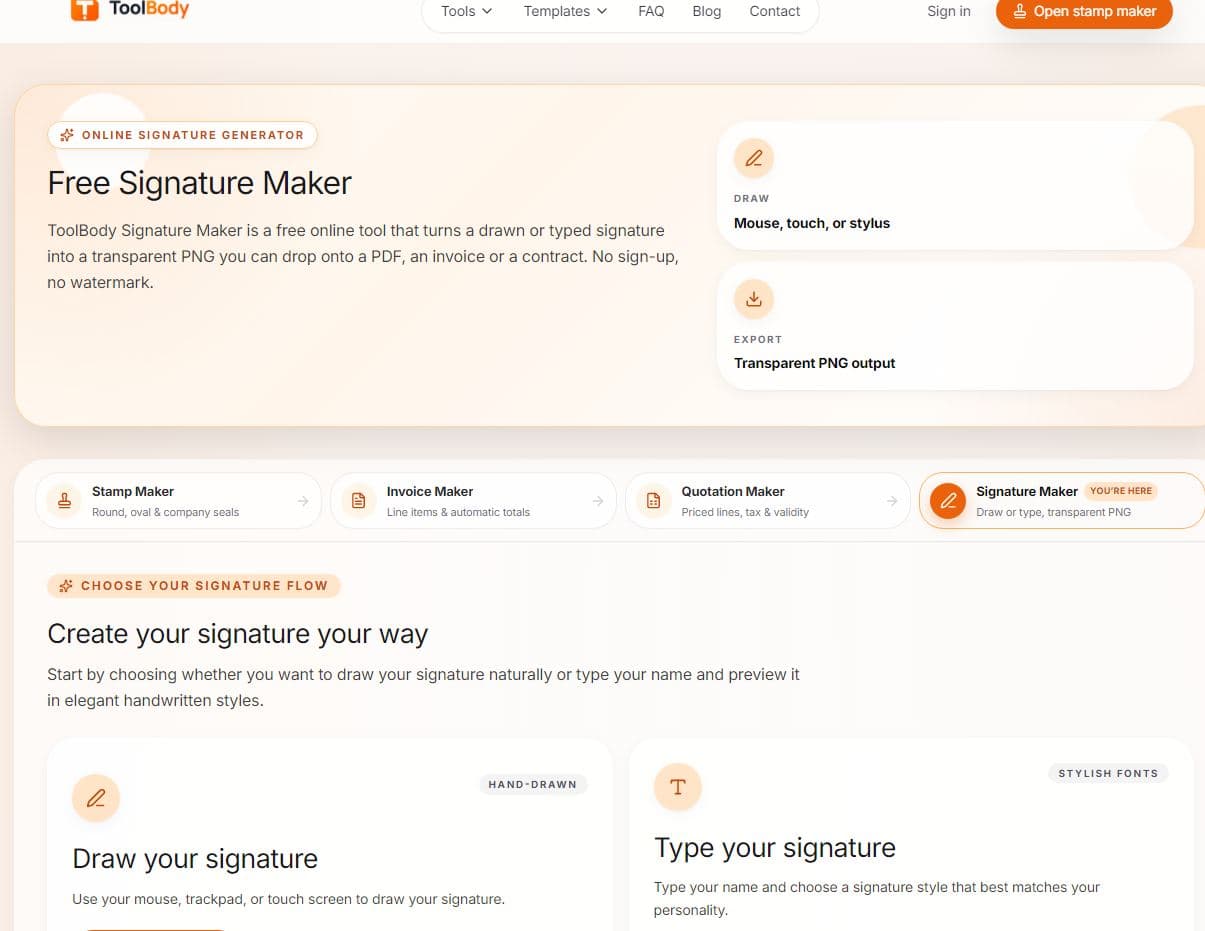
A free transparent signature maker lets you create that signature right in your browser. You draw it, upload it, or pull it from a photo, and you download a clean PNG with no white box around it. In this guide, you will learn what a transparent signature is, why it matters, how to make one online for free, and how to use it in Word, PDF files, and even Paint.
What Is a Transparent Signature?
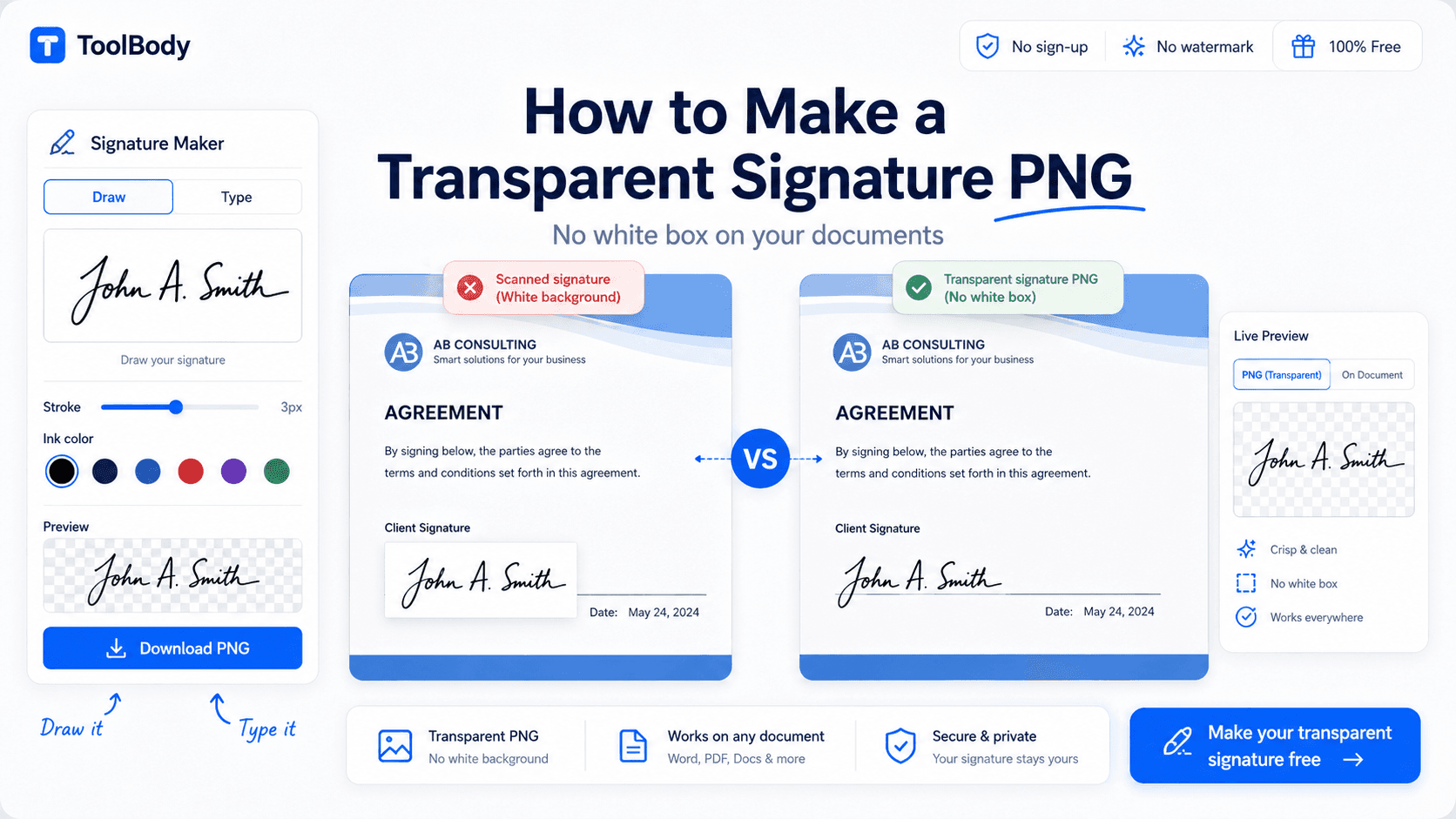
A transparent signature is an image of your handwriting where everything except the ink is see-through. Normal photos and scans have a solid background, usually white or grey. When you paste that kind of image onto a document, you get an ugly rectangle that covers the text underneath.
A transparent signature solves this. Because the background has no color at all, only the strokes of your signature show up. You can place it over a signature line, a stamp, a watermark, or a colored page, and it blends in naturally.
The format that makes this possible is PNG. Unlike JPG, a PNG file supports an alpha channel, which is the part of the image that stores transparency. That is why people search for "signature png transparent" so often: PNG is the standard format for this job.
Why You Need a Transparent Signature PNG
Digital paperwork is now part of everyday life. Here are the most common reasons people create a transparent signature.
Signing documents faster. Instead of printing and scanning, you insert your PNG, resize it, and send the file. A task that took ten minutes now takes thirty seconds.
Professional looking files. A signature with a white box looks careless. A clean one looks polished, especially on business letters, proposals, and invoices.
Working from anywhere. Freelancers, remote workers, and students often cannot print at home. A saved signature image solves that problem.
Reusing one signature everywhere. Once you have a good PNG, you can use it again in Word, PDF editors, presentations, emails, and design tools.
Branding. Business owners add their signature to certificates, thank-you cards, and official letters to give them a personal touch.
Three Ways to Make a Transparent Signature Online
Most free tools offer one or more of the methods below. Pick the one that matches your situation.
1. Draw Your Signature on Screen
This is the easiest method and gives you a true handwritten transparent signature PNG.
Open the signature maker in your browser.
Use your mouse, trackpad, finger, or stylus to draw your signature in the box.
Adjust the pen thickness and ink color if the tool allows it.
Clear and redraw until you like how it looks.
Download the result as a transparent PNG.
Tip: If you are on a phone or tablet, drawing with your finger often looks more natural than using a mouse. A stylus gives the best result.
2. Upload a Photo of Your Signature
If you prefer the look of a real pen, sign a plain white sheet of paper with a dark pen, then take a photo or scan it. Upload the image to the tool, and it will remove the paper background for you.
For the best results:
Use a black or dark blue pen. Thin pencils and light ink are hard to detect.
Photograph the page in bright, even light, with no shadows across the paper.
Keep the camera straight above the page, not at an angle.
Crop tightly around the signature before uploading.
3. Extract a Signature from an Image
Sometimes you already have your signature inside a scanned document or an old photo. In that case you can extract the signature from the image, free of charge, with the right tool. You upload the file, select the signature area, and the tool separates the ink from everything around it. This is handy when you lost the original paper but still have a scan.
How to Make a Signature Transparent in Word
Many people want to know how to make a transparent signature in Word. There are two simple paths.
Option A: Use a ready PNG. Create your signature with an online maker, download the transparent PNG, then in Word choose Insert, then Pictures, and select the file. Because the background is already transparent, it sits cleanly on top of your text. Use the layout options and choose "In Front of Text" so you can drag it onto the signature line.
Option B: Fix a normal image inside Word. If you only have a JPG or a scan with a white background, insert it, click the picture, open Picture Format, choose Color, then Set Transparent Color, and click the white area. Word removes that color. This works for simple, clean scans, but edges can look rough. A dedicated signature maker gives smoother results.
After inserting, right-click the image, choose Save as Picture, and keep it as PNG so you can reuse it later.
How to Make a Signature Transparent in Paint
Classic Paint can also help, though it has limits. In the Windows 11 version of Paint, you can open your signature image, select the Image tools, and use the background removal option to clear the paper behind your handwriting. Then save the file as PNG.
Older versions of Paint do not save true transparency in the same way, so the background may stay white after saving. If you see that problem, upload the image to an online signature maker instead. It takes less than a minute and avoids the guesswork.
Tips for a Clean, Professional Signature
A transparent background is only half the story. The quality of the signature itself matters too.
Keep it simple. Overly large or messy loops look odd when shrunk down. Aim for a signature you can recognize at a small size.
Use dark ink. Black or deep blue works best for legal and business files. Bright colors can look unprofessional.
Choose the right size. A signature around 600 to 1000 pixels wide is enough for most uses. It stays sharp when printed and does not make your file heavy.
Avoid shaky lines. If your hand wobbles while drawing, slow down or use a stylus. You can also redraw as many times as needed since the process is free.
Is a Digital Signature Image Legal?
This is a common and important question. A transparent signature image is a picture of your handwriting. In many countries and situations, signing a document with such an image is accepted for everyday agreements, internal approvals, and routine paperwork.
However, some documents need stronger proof, such as certified electronic signatures with identity checks, audit trails, or digital certificates. Government forms, property transfers, and certain legal contracts often fall into this group. Rules vary by country and by document type, so always check the requirements of the person or office asking for your signature. If you are unsure, ask them which kind of signature they accept.
FAQs
A transparent signature is an image of your handwritten signature with no background. Only the ink is visible, so you can place it on any document without a white box around it.
Open the signature maker, draw your signature or upload a photo of it, and download the result as a PNG. The whole process takes less than a minute and needs no software.
Yes. Upload a scan or photo that contains your signature, and the tool separates the ink from the paper. For the best result, use a clear image with dark ink and even lighting.
PNG supports transparency, while JPG does not. If you save as JPG, the background turns white and your signature will cover the text behind it.
Insert your transparent PNG using Insert, then Pictures. Set the layout to “In Front of Text” and drag it onto the signature line. If you only have a white-background image, use Picture Format, then Color, then Set Transparent Color.
Yes, in the newer version of Paint you can remove the background and save the file as PNG. Older versions may keep a white background, so an online signature maker is the safer option.