How to Add a QR Code to an Invoice (Free, No Sign-Up)
Add a QR code to your invoice for instant payment, WhatsApp contact, or your business card details. Free tools, no sign-up, clean PDF in minutes.
An invoice with a phone number and a bank account line makes a client do three things: read it, type something into their phone, and hope they typed it right. A QR code skips all three. One scan and they're looking at your payment page, starting a WhatsApp chat, or saving your contact no typing, no typos.
This isn't a feature bolted onto invoicing software for the sake of having a feature. It's a genuine fix for a real friction point, and you don't need a paid tool to do it.
What actually goes on an invoice QR Code
Not every idea here is a good one. A few work well:
A payment link. If you take payments through Stripe, PayPal, Wise, or a local payment gateway, a QR code pointing at your payment page means the client scans and pays no copying account numbers by hand, no misplaced digit in an IBAN.
A WhatsApp chat Useful if you want clients to be able to ask a quick question about the invoice without hunting for your number. The code opens a chat with you directly, and you can pre-fill the first message ("Hi, question about invoice #104").
Your vCard. For invoices going to a new client, a small vCard code saves your name, phone, and email straight into their contacts handy if this is the start of an ongoing relationship.
One that doesn't work well: encoding your bank details raw as plain text in a QR code. It scans fine, but most banking apps won't auto-fill an IBAN from a QR scan the way they do from a proper payment link, so you haven't actually saved the client any typing you've just moved the typing into a phone screen, which is worse. If you want scan-to-pay, use your payment provider's actual link, not raw account numbers.
Step 1: Generate the QR code
Use a QR code generator that produces a static code one where your data is baked into the pattern itself, not a redirect through someone else's server. That matters here specifically: a code on a printed or emailed invoice might get scanned six months later, and you don't want it depending on a subscription still being active.
On ToolBody QR Code Generator
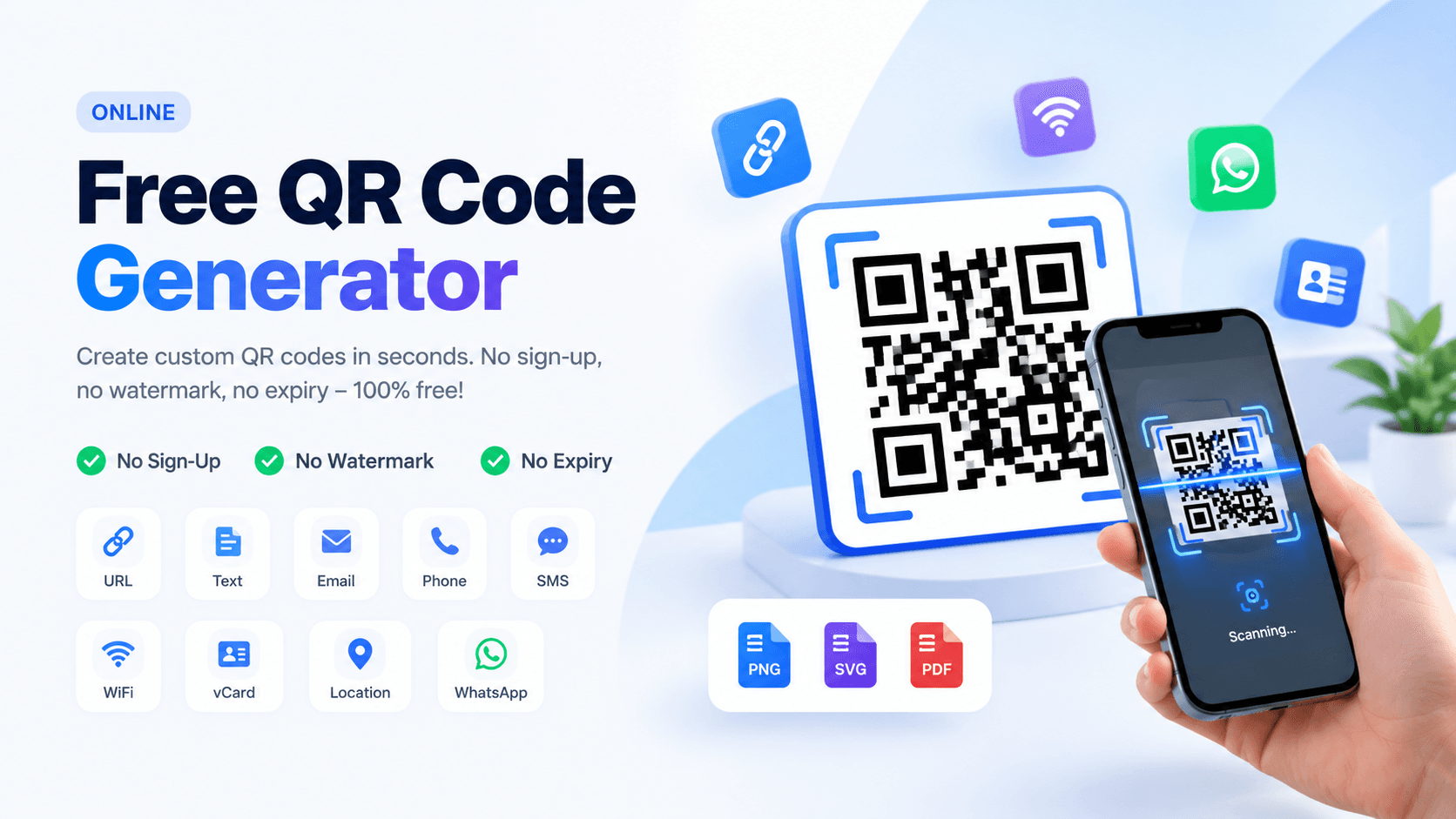
1. Pick the type: URL for a payment link, WhatsApp for a chat, or vCard for contact details.
2. Enter your link or details.
3. Keep the colours dark-on-light (that's what scanners actually rely on for contrast a lighter code on a dark background looks fine on screen but fails on plenty of phones
4. Download as SVG if you're placing it in an invoice template you'll reuse, since it stays sharp at any size you resize it to later. PNG is fine for a one-off invoice.
No account, no watermark, and the file is yours immediately.
Step 2: Place it on the invoice
Where it goes matters more than people expect:
Top right or bottom right, near your business details or the payment section not buried in the middle of the line items, where it looks like a mistake.
Keep the white margin around the code intact. That quiet border is part of how a scanner locates the pattern, so don't crop it tight against other design elements.
Size it to at least 2×2 cm on a printed page. Smaller than that and it becomes unreliable for an average phone camera at a comfortable distance.
Add one line under it: "Scan to pay" or "Scan to save my contact" so it's obvious what scanning does. A code with no label makes people hesitate.
If you're using ToolBody Invoice Maker, download your invoice as a PDF first, then place the QR code image in the same corner using any PDF editor, or add it as an image block if your invoice template supports one. Both tools are free and neither requires an account, so the whole workflow costs nothing and takes a few minutes.
Step 3: Test before you send
Test the printed or exported invoice with an actual phone camera before it goes to a client not just a screen preview. Screen colours and printed colours don't always match, and a code that scans perfectly on your monitor can lose contrast on a home printer. This takes ten seconds and saves you a client emailing back confused.
FAQs
No, if it's small, labelled, and placed deliberately near the payment or contact section. It looks out of place only when it's oversized, un labelled, or dropped into the middle of the line items.
You can encode plain text with an IBAN or account number, but most banking apps won't auto-fill a transfer from it the way they do from a real payment link. If your payment provider (Stripe, PayPal, Wise, etc.) gives you a hosted payment link, use that instead that's what actually saves the client a step.
If you used an SVG version of the code, yes it stays sharp at any size. A PNG can go blurry if you scale it up significantly, which can affect scannability. Keep PNGs close to their original size.
Not if it's a static code the kind that encodes your link or details directly into the pattern. It has nothing to expire, unlike some paid QR services that route through a shortened link and stop working if you cancel the subscription. Worth checking which type you're using, especially for invoices that might get pulled up again months later for tax records.
No. Both the QR Code Generator and the Invoice Maker are free, with no sign-up and no watermark on the output.