Free QR Code Generator Online with Logo: WiFi, WhatsApp and vCard Guide
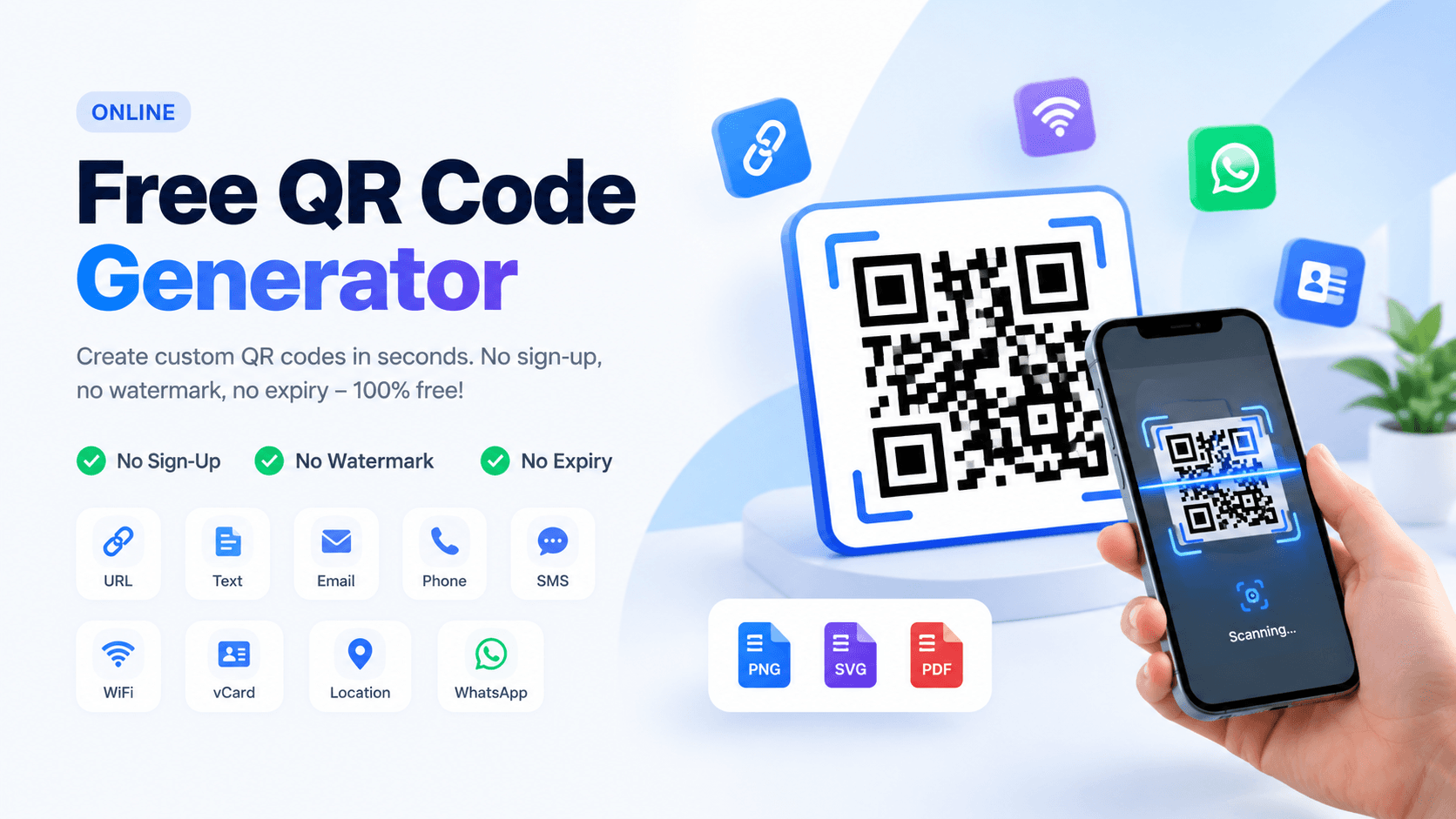
Free QR code generator with logo. Make QR codes for links, text, email, phone, SMS, WiFi, WhatsApp, vCard and maps. Download PNG, SVG or PDF. No sign-up needed.
Free QR Code Generator Online with Logo: WiFi, WhatsApp and vCard Guide
A free QR code generator that runs in your browser lets you choose what the code does, style it, and download it as PNG, SVG or PDF in a few seconds. There is nothing to install, no account to create and no watermark on the result.
Most QR tools push you towards a paid plan the moment your code becomes useful. They hide the download button, stamp their own name on the image, or switch the code off after a short trial. This generator works the other way round. The code is drawn on your own device and the information you type is stored inside the image itself, so the file you download keeps working for as long as the image exists.
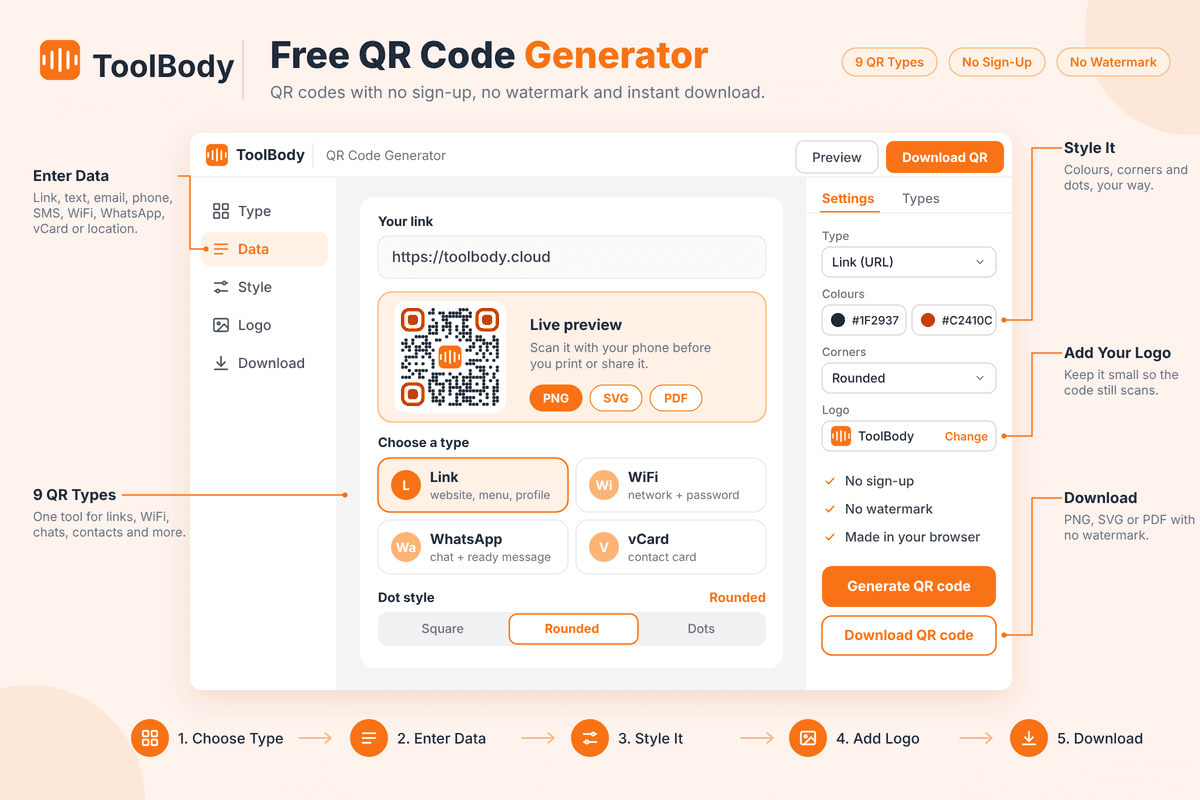
You can make five kinds of codes here: a website link, a WiFi login, a WhatsApp chat, a contact card and a map location. Each one can be customised with your own colours, corner shapes, dot styles and logo. This guide explains how each type works, how to style a code without breaking it, which file format to choose, and how to test a code before you print it.
What a QR code is and how it works
A QR code is a square pattern of dark and light modules that stores a small piece of text, which a phone camera reads and turns into an action. QR stands for quick response. It was invented in 1994 by the Japanese company Denso Wave to track car parts, and it spread everywhere once phone cameras learned to read it without a separate app.
The pattern is not random. Three large squares in three corners tell the scanner where the code starts and how it is rotated. A smaller square pattern and a row of alternating modules help the camera correct for tilt and distance. The rest of the grid holds your data and extra repair information.
That repair information is called error correction. It lets a scanner rebuild the message even when part of the code is scratched, smudged or covered, which is also why a small logo in the middle of a code can still scan. The more data you store, the denser the grid becomes, so a short link produces a cleaner, easier code than a long block of text.
What the phone does next depends on the text inside. A link opens the browser, a WiFi string offers to join the network, a contact card offers to save a person, and a location opens the map app.
Five QR code types you can make for free
Link QR code
Paste any web address and the code opens that page when scanned. Use it for a website, an online menu, a portfolio, a booking page, a video or a social profile. Short links make cleaner codes, so remove tracking parameters you do not need.
WiFi QR code
Enter the network name, the password and the security type, and guests can join by pointing their camera at the code instead of typing a long password. Print it and stick it near the router, in a cafe, in a guest room or in an office meeting room. Because the password sits inside the code, share the printed copy only where you would be happy to share the password itself.
WhatsApp QR code
A WhatsApp code opens a chat with your number, so customers can message you without saving your contact first. Enter the number with its country code, for example +92 for Pakistan, and add a ready-made first message such as "Hi, I would like to order". This works well on shop windows, delivery boxes, flyers and visiting cards.
Contact card (vCard) QR code
A vCard code holds your name, phone, email, company and website. One scan offers to save all of it as a new contact, which is faster and more accurate than typing from a business card. It is a good fit for freelancers, sales teams and event badges.
Location QR code
A location code opens a pin on the map. Put it on an invitation, a shop sign, a property listing or a delivery note so people reach the exact spot instead of hunting for an address.
How to make a QR code in under a minute
The whole process takes six steps, and none of them needs an account.
Choose the type: link, WiFi, WhatsApp, contact card or location.
Type or paste your details. Check the spelling of the address, the password or the phone number, because the code will repeat any mistake exactly.
Pick your colours. Keep the dots dark and the background light for the safest scanning.
Choose a corner style and a dot style that match your brand.
Add your logo if you want one, and keep it small.
Download the code as PNG, SVG or PDF, then scan it with two different phones before you share or print it.
Look at the code on screen before you download it, and test it once more after you save the file.
Customise colours, corners, dots and logo without breaking the scan
A plain black and white code is the most reliable, but a styled code gets noticed and remembered. The rule is simple: change the look, not the contrast.
Colours. Scanners read the difference between dark and light modules. Use a dark colour for the dots, such as deep blue, dark green or black, on a clearly lighter background. Light dots on a dark background, or two mid-tone colours, are the most common reason a stylish code fails.
Corner style. The three large corner squares can be sharp or rounded. Rounded corners look softer and friendlier, while square corners look more formal. Both scan the same, as long as the squares stay clearly visible.
Dot style. Dots can be square, rounded or dotted. Rounded shapes suit lifestyle brands, and square shapes suit technical or corporate material. Very thin or tiny dots can blur when printed small, so test the style at the size you plan to use.
Logo. A logo in the centre builds trust and tells people whose code it is. Keep it small, roughly a fifth of the code's width at most, and use a simple logo with a clear background. A large logo hides too many modules and the code stops scanning.
PNG, SVG or PDF: which download should you choose
Choose PNG for screens, SVG for anything that will be printed large, and PDF when you need a document-ready file.
Format | Stays sharp when enlarged | Best for |
|---|---|---|
PNG | No, it is made of pixels | Websites, social posts, WhatsApp, email, slides |
SVG | Yes, it is vector artwork | Banners, posters, packaging, shop signs, designers |
Yes, it is print-ready | Flyers, menus, invoices, documents you will print |
If you are unsure, download two. Use the PNG for everyday sharing and keep the SVG as your master copy, because you can scale it to any size without the edges turning soft. A blurry QR code is one of the most common reasons a printed code fails to scan.
Why these codes never expire and why your data stays private
Every code made here is a static QR code. A static code carries your information directly inside the pattern, so it does not depend on a company's server to forward people to your page. Nobody can switch it off, put it behind a subscription or let it lapse after thirty days.
That is different from a dynamic code, which points to a short link owned by the QR service. Dynamic codes allow scan statistics and later edits, but they stop working if the service closes or you stop paying. If you only need a code to share a link, a WiFi login, a chat or a contact, static is the simpler and safer choice.
The code is also drawn in your browser. The text you enter, whether that is a WiFi password or a phone number, is turned into the image on your own device rather than being saved to an account. There is no sign-up needed, so there is no profile that holds your codes.
One honest limit: a static code cannot be edited afterwards. If your link, number or password changes, make a new code and replace the old one.
Tips for a QR code that scans every time
A code that looks good but does not scan is worse than no code. Check these points before you print.
Keep strong contrast. Dark dots on a light background, always.
Leave a quiet zone. Keep a clear empty margin around the code, about the width of four modules, and do not let text or pictures touch the edges.
Print it big enough. About 2 cm by 2 cm is a practical minimum for close scanning, and larger for posters or anything viewed from a distance.
Keep the data short. A shorter link or message means a simpler pattern that scans faster, even in poor light.
Do not stretch or crop it. Resize it evenly and never cut off a corner.
Use a flat, matte surface. Glare, curved bottles and glossy laminate can confuse a camera.
Test before you share. Scan the finished code with at least two phones, one Android and one iPhone, and from the distance a real customer would use.
If a test fails, remove the logo, darken the dots or shorten the data, then test again.
Practical ways to use your QR code
Small shops and online sellers. Put a WhatsApp code on the counter, the shopping bag and the delivery parcel so customers can order or ask a question in one scan.
Restaurants and cafes. Link a code to your menu page and add a WiFi code on the table or near the till, so guests stop asking for the password.
Freelancers and professionals. Print a vCard code on your visiting card, email signature or portfolio so new contacts are saved correctly the first time.
Events and weddings. Share a location code on the invitation, a link code for the schedule, and a WiFi code at the venue entrance.
Real estate and rentals. Add a location code on the property board and a link code to photos and floor plans.
Students and teachers. Turn a study link, a shared document or a class video into a code on a handout, so nobody has to copy a long address.
FAQs
Yes. You can make and download as many codes as you like with no payment, no trial period and no watermark.
No. There is no sign-up needed or login. Open the page, make your code and download it.
No. These are static codes with the information stored inside the image, so they keep working as long as the image does.
Yes. Add your logo, keep it small and test the code afterwards. A logo that is too large can stop the code from scanning.
Use PNG for websites and social media, SVG for large prints and professional design work, and PDF for documents you will print.
No. A static code cannot be edited. If the link, number or password changes, create a new code and replace the old one.
Yes. Modern iPhone and Android cameras scan QR codes directly from the camera app, with no extra app needed.
The code is drawn in your browser, and the information is stored inside the image you download rather than in an account.