Creating a Stamp Online Free: How to Design, Customise and Download One in Minutes
A practical guide to creating a stamp online free of charge — what to put on it, how to lay it out, which file to download, and the mistakes that make a stamp look amateur.
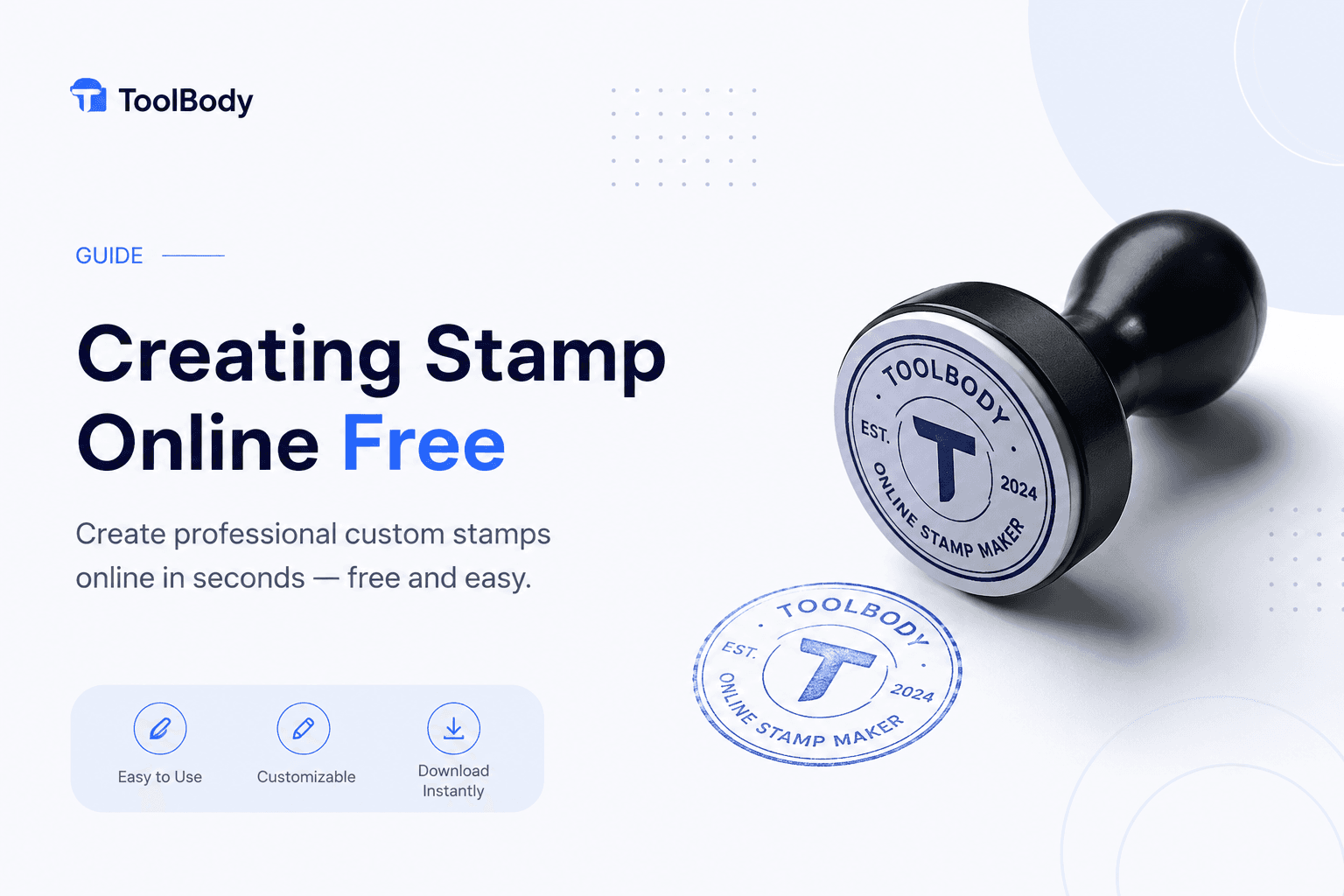
A stamp used to mean a trip to a print shop, a proof by email, and a week's wait. Now the design part takes a few minutes in a browser, and for most everyday uses — invoices, receipts, letters, PDFs — you never need the rubber version at all.
This guide covers creating a stamp online free of charge from start to finish: what belongs on it, how to lay it out so it reads well at a small size, which file to download for which job, and the handful of mistakes that make a stamp look homemade.
What "free" should actually mean
Plenty of sites advertise a free toolbody.cloud/stamp-maker-online-free">stamp maker and then charge at the download step, add a watermark, or ask for an account before you can save anything. Before you spend time on a design, check three things:
The download is free — not just the editor.
There is no watermark on the exported file.
You don't need to sign up to save your work.
ToolBody's free online stamp maker meets all three. The design runs in your browser, nothing is uploaded, and the PNG, SVG and PDF downloads are the same as the preview.
Decide what the stamp is for
The layout follows the job, so settle this first. Most stamps fall into one of four groups:
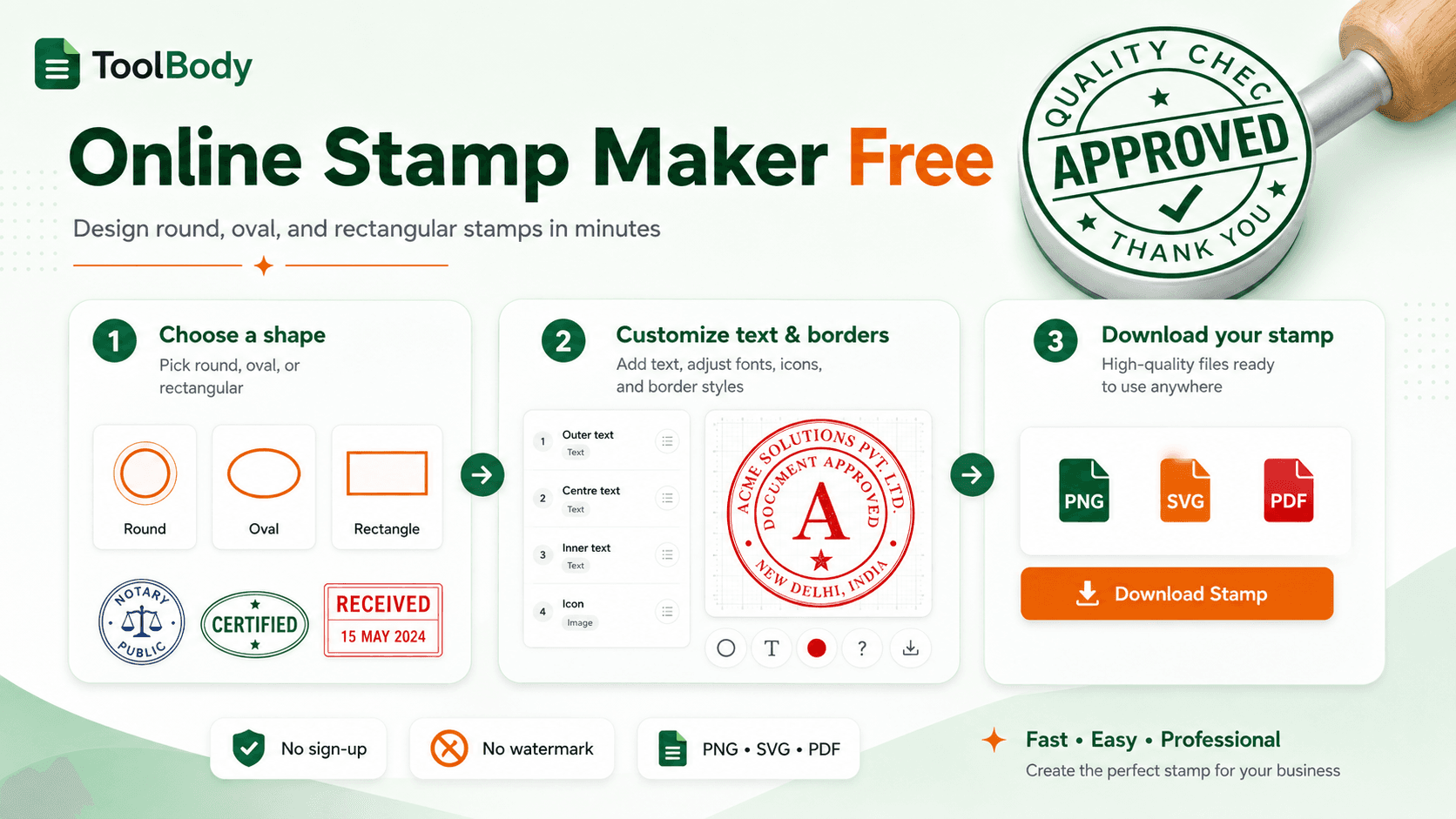
Company seal. Company name, city or emirate, and a registration or licence number or a P.O. Box. Usually round, often bilingual in the Gulf, and formal in colour — black, dark blue or red.
Workflow mark. A status word — PAID, APPROVED, RECEIVED, CERTIFIED — with space for a date or initials. Read quickly, so the word is the biggest thing on it.
Name or signatory stamp. A person's name in the centre with the company or title around it, placed beside a signature.
School or organisation seal. Institution name and abbreviation on the ring, address or motto underneath, initials or a crest in the centre.
If you're not sure where to begin, the stamp templates gallery has each of these already laid out, and every line on them can be replaced.
Choose the shape
Round is the default for seals and most office stamps because curved text around a ring fits a lot of information into a small space. Oval suits longer names. Rectangle is the natural choice for address stamps, date stamps and anything with three or four straight lines of text.
Size matters less on screen than on paper. If the stamp will ever be made into a rubber stamp, 40 mm round is a common and comfortable size — large enough to read, small enough not to cover the text underneath.
Lay out the text
A stamp that reads well follows a few simple rules:
One idea per line. Company name on one arc, city and number on separate centre lines. Don't run everything together.
Capitals on the ring, mixed case in the centre. Curved text in capitals stays legible; a name in the centre reads better in normal case.
Keep the centre short. Two or three short lines beat one long one. A long name goes on the arc where it has room to curve.
Use separators deliberately. Stars, dots or dashes between words on the ring make them easier to read. Pick one style and stick to it.
Check the fit in the live preview before you download. A long Arabic or Latin name may need a smaller font or tighter spacing.
Add a logo or emblem
A logo in the centre is optional but it does a lot of work — it makes the stamp recognisable before anyone reads it. Upload your own logo as an image, or use one of the built-in SVG shapes if you want a shield, wreath, aircraft or similar emblem without commissioning artwork. Keep it simple: fine detail disappears at 40 mm.
Pick a colour
Colour carries meaning on a stamp, so choose it for the job rather than for the brand alone:
Black — formal, photocopies cleanly. Safe for seals and certificates.
Dark blue — formal but softer than black. Common for company seals and professional firms.
Red — traditional for seals in many countries and for marks that must stand out. Also the colour of correction and rejection stamps, so avoid it for PAID or APPROVED.
Green or blue — positive status marks, easy to tell apart from red.
Orange or brand colours — customer-facing stamps where a bit of personality helps.
Download the right file
This is where most people pick the wrong option. There are three, and each has a purpose:
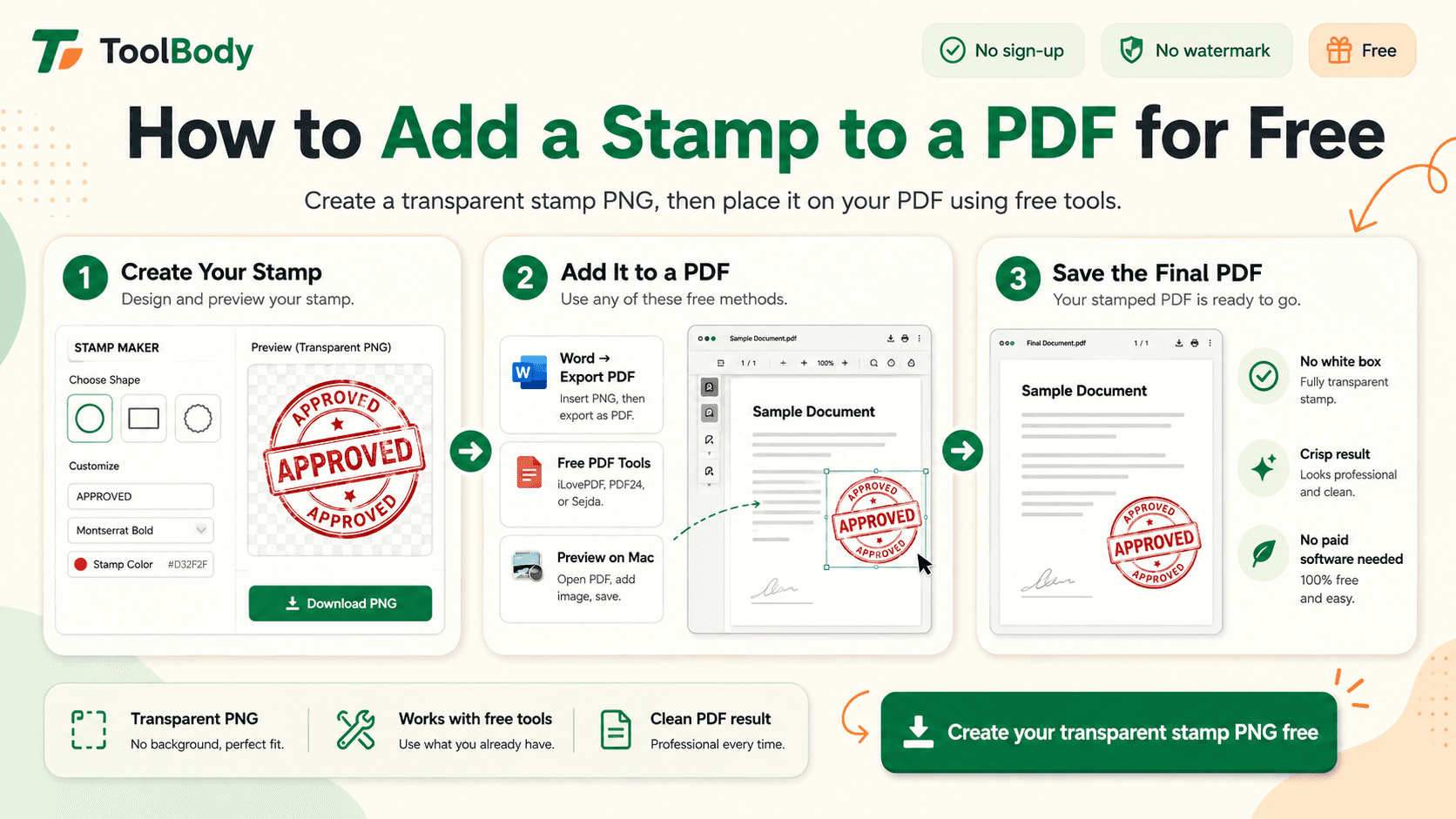
PNG with a transparent background — for placing on PDFs, Word documents, invoices and emails. The transparency means the stamp sits over text without a white box around it. This is the one nine out of ten people need.
SVG — for a physical rubber stamp or embosser. Vector files stay sharp at any size and stamp shops can work from them directly. Also the right choice if you'll resize the stamp often.
PDF — for tools that accept a PDF insert rather than an image.
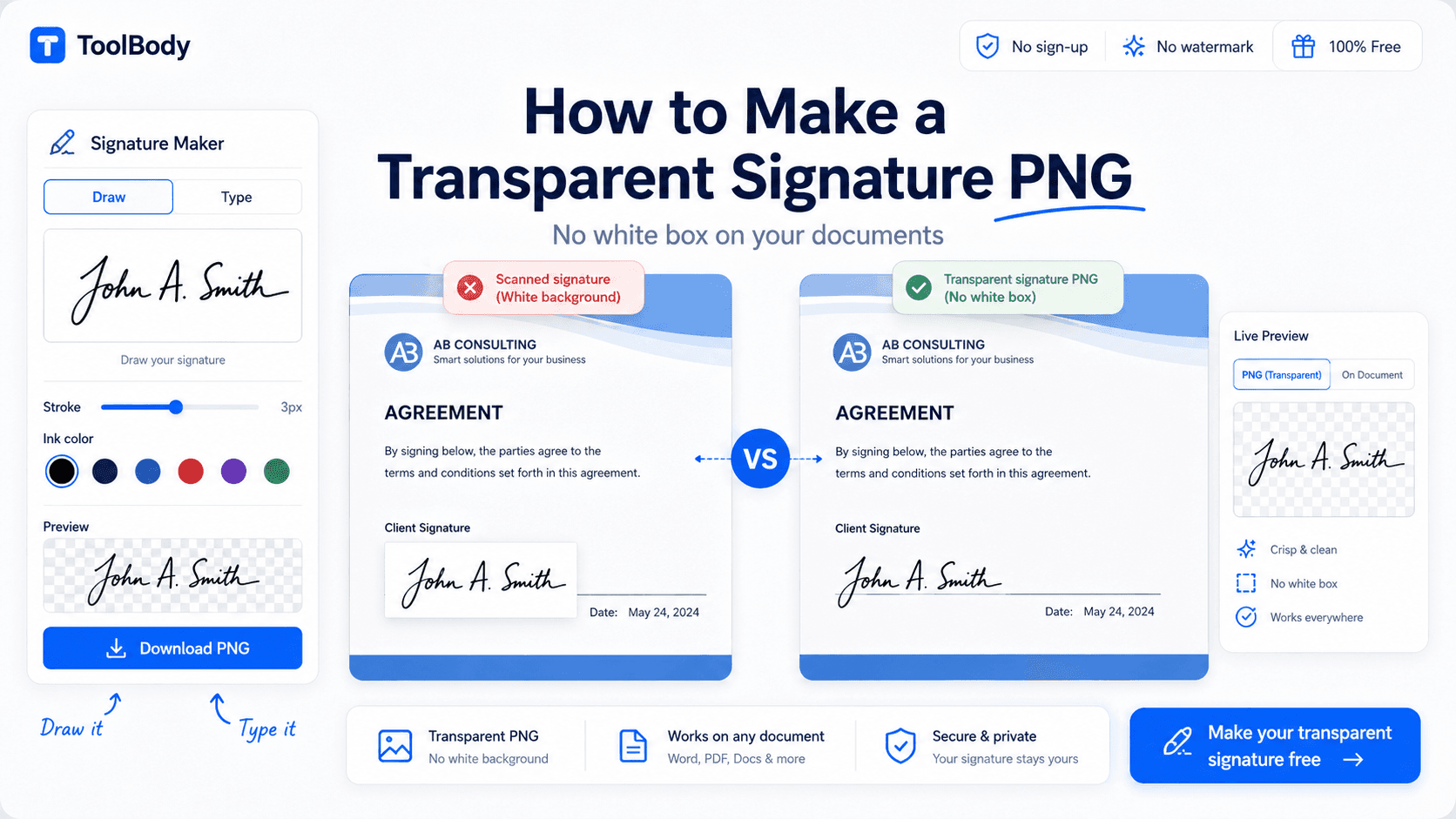
If the stamp is going on invoices, the PNG drops straight into the invoice maker, which has a dedicated stamp field. Documents that need a signature too can take a transparent one from the signature maker placed beside the stamp.
Mistakes that make a stamp look amateur
Too much text. If the ring is crowded and the centre has five lines, cut it down. A stamp is a mark, not a business card.
Mixed fonts. One font, two at most. A serif for a traditional seal, a clean sans-serif for a modern business stamp.
A logo with fine detail. Thin lines and small text inside a logo vanish at stamp size. Use the simplest version of your mark.
Wrong colour for the job. A red PAID stamp reads as a problem, not a confirmation.
Skipping the preview. Check the fit and spacing before you download, especially with long or bilingual names.
Copying an official seal. Government, court and notary seals are regulated. Design your own; don't recreate someone else's.
Digital stamp or physical stamp?
You don't have to choose. Design once, download the PNG for digital documents and the SVG for the rubber version. The two will match exactly, which is the point — a client who sees your stamp on an emailed invoice should recognise the same mark on a printed contract.
For most small businesses today, the digital version does the daily work and the rubber stamp comes out for paper contracts and bank paperwork. Creating the design online first means the physical stamp is an exact copy rather than a print shop's interpretation.
Start your stamp
Pick a shape, put your name on the ring, add a logo if you have one, choose a colour, and check the preview. That's the whole process. Open the stamp maker with a blank canvas, or start from a template and replace the text — either way, the download is free, watermark-free, and stays on your device.
FAQs
On ToolBody, yes. The editor, the templates and the PNG, SVG and PDF downloads are all free, with no account and no watermark. Some other sites offer a free editor but charge for the download or add a watermark, so check before you start.
PNG with a transparent background for placing the stamp on PDFs, invoices and documents. SVG if you want a physical rubber stamp made, because it stays sharp at any size. PDF for tools that accept a PDF import rather than an image.
Yes. Right-to-left text works on the curved arcs and in the centre, so bilingual stamps — Arabic and English, for example — can be made without any workaround.
Yes. Download the SVG and send it to a rubber stamp maker with the size you want. Most shops accept SVG directly; a 40 mm round stamp is a common size for company seals and office marks.
No. The ToolBody editor runs in your browser and nothing you type is sent anywhere. Once you close the tab, the design only exists in the file you downloaded.
Not one you aren't authorised to use. Notary, court and government seals are regulated, and recreating one is illegal in most places. Use an online stamp maker for your own business, school or personal stamps.